
Enhance CX: Add Sound Notifications to Salesforce Messaging for Web 🎵
In today’s fast-paced digital world, instant communication is key. Salesforce Messaging for Web provides a fantastic channel for real-time customer engagement. But what happens when a customer sends a message and navigates to another browser tab? They might miss the agent’s reply, leading to delays and a fragmented experience.
The solution is simple yet powerful: a sound notification.
This guide will walk you through how to implement an audible alert for visitors whenever they receive a message from an agent in Salesforce Messaging for Web. Let’s boost that customer experience!
Why You Need Sound Notifications
Implementing a simple sound alert can significantly improve the quality of your web chat interactions.
- ⚡️ Grab Attention: A sound cue instantly notifies users of a new message, even if they aren’t actively looking at the tab.
- 📉 Reduce Response Delays: Faster notifications mean faster customer replies, leading to quicker resolutions.
- ❤️ Improve Customer Satisfaction: A seamless and responsive chat experience prevents frustration and shows you value the customer’s time.
The Core Components
We’ll use standard web technologies to achieve this, making it a straightforward implementation. Here’s what we’re working with:
- Salesforce’s
onEmbeddedMessageSentEvent: Salesforce Messaging for Web fires this specific JavaScript event on the visitor’s browser whenever an agent sends a message. This is our trigger. - HTML
<audio>Tag: This standard HTML element is used to embed a sound file on your webpage. - JavaScript
play()Method: This simple command tells the browser to play the audio file embedded with the<audio>tag.
Step-by-Step Implementation Guide
Ready to get started? It only takes two simple steps to set up.
Step 1: Add the Audio Element to Your Webpage
First, you need an audio file (.mp3, .wav, etc.) that you want to use as your notification sound. You can host this file on your server or even as a Salesforce Static Resource.
Next, place the following HTML <audio> tag anywhere in the <body> of your webpage that hosts the chat client.
HTML
<audio id="chatNotificationSound">
    <source src="URL_TO_YOUR_SOUND_FILE.mp3" type="audio/mpeg">
    Your browser does not support the audio element.
</audio>
Key Points:
id="chatNotificationSound": This ID is crucial. It’s how our JavaScript will find and control the audio player. You can name it whatever you like, just be consistent.src="URL_TO_YOUR_SOUND_FILE.mp3": Remember to replace this with the actual URL where your sound file is hosted.
Step 2: Create the JavaScript Event Listener
Now we need to tell the browser to listen for the Salesforce event and play the sound when it happens. Add the following JavaScript code in a <script> tag on your page, preferably just before the closing </body> tag.
JavaScript
/* * Listens for message and plays a notification sound for the visitor.
 */
window.addEventListener("onEmbeddedMessageSent", (event) => {

    console.log("Agent message received!");

    // Find the audio element by its ID
    let notificationSound = document.getElementById("chatNotificationSound");

    // Play the sound
    if (notificationSound) {
        notificationSound.play().catch(error => console.error("Audio play failed:", error));
    }

});
How It Works
This code is straightforward:
window.addEventListener("onEmbeddedMessageSent", ...)sets up a listener that waits for the exact moment an agent’s message arrives in the chat widget.- When the event occurs, the code inside the function runs.
document.getElementById("chatNotificationSound")selects the<audio>element you added in Step 1.notificationSound.play()triggers the audio playback, alerting your visitor.- The
.catch()block is added as a best practice to handle potential browser errors, as some browsers have strict policies about audio autoplay.
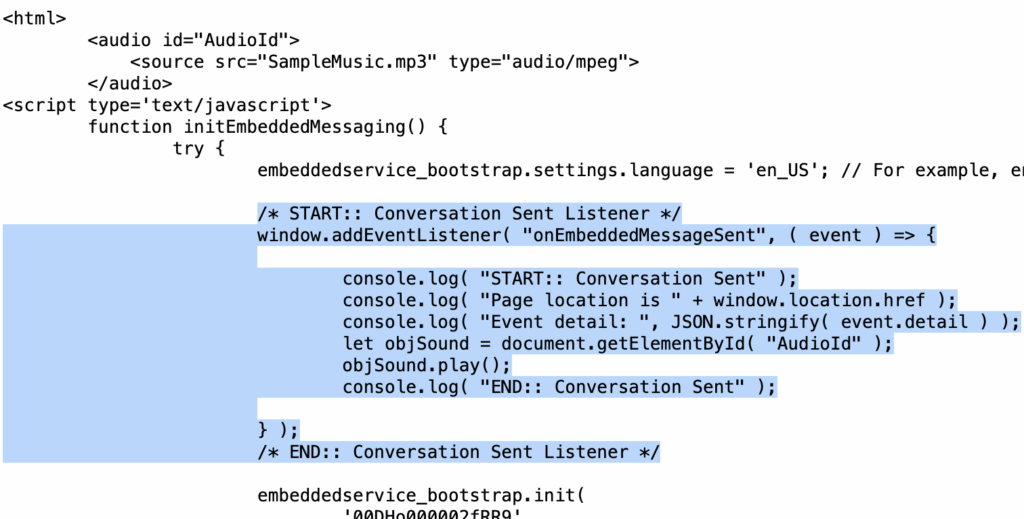
Code for Reference:
HTML Code for Audio:
<audio id="AudioId">
	<source src="SampleMusic.mp3" type="audio/mpeg">
</audio>
JavaScript Code:
/* START:: Conversation Sent Listener */
window.addEventListener( "onEmbeddedMessageSent", ( event ) => {

	console.log( "START:: Conversation Sent" );
	console.log( "Page location is " + window.location.href );
	console.log( "Event detail: ", JSON.stringify( event.detail ) );
	let objSound = document.getElementById( "AudioId" );
	objSound.play();
	console.log( "END:: Conversation Sent" );

} );
/* END:: Conversation Sent Listener */
And that’s it! With these two small code snippets, you’ve successfully added a crucial feature to your Salesforce Messaging for Web implementation. By providing an audible cue, you ensure your customers never miss a message, leading to a smoother and more efficient service experience.
Salesforce Article:
https://developer.salesforce.com/docs/service/messaging-web/guide/event-listeners.html