Unlocking Data Cloud: Solving the “Data Space Access” Permission Error
You’re ready to dive into the powerful world of Salesforce Data Cloud, segmenting audiences and unifying customer data. You navigate to a Data Stream, a Calculated Insight, or a Data Library, and then you hit a wall—a frustrating and cryptic error message:
Exception:
Looks like you don't have access to the data space used by the assigned data library. Update your data space access and try again.This error can stop your project in its tracks. The good news? The fix is incredibly simple and usually takes less than two minutes. This isn’t a data corruption issue or a complex bug; it’s a straightforward permissions problem.
In this guide, we’ll walk you through exactly what this error means and the step-by-step process to resolve it for good.
Understanding the Root Cause: Data Spaces and Permissions
Before we jump into the fix, let’s quickly understand the key components involved:
- Salesforce Data Cloud: Your central hub for harmonizing and activating customer data.
- Data Spaces: Think of these as containers or workspaces within Data Cloud. They help you partition your data, manage governance, and control user access for different brands, regions, or business units.
- Data Library: The specific location within a Data Space where objects like Data Streams and Calculated Insights are stored.
- Permission Sets: The standard Salesforce way to grant users specific permissions and access to applications, objects, and fields.
The error message is telling you that the user you’re logged in as does not have the necessary permissions to “see” or “interact with” the contents of the Data Space where the Data Library is located.
The Resolution: Assign the Data Cloud User Permission Set
The solution is to assign the standard Data Cloud User permission set to the affected user account. This permission set contains the foundational access rights needed to interact with Data Cloud features.
Here is a step-by-step guide to assigning the permission set.
Step 1: Navigate to Setup
From anywhere in Salesforce, click the Gear icon in the top-right corner and select Setup.
Step 2: Find Permission Sets
In the Quick Find box on the left, type “Permission Sets” and click on the “Permission Sets” link under the Users section.
Step 3: Locate the ‘Data Cloud User’ Permission Set
In the list of permission sets, find the one named Data Cloud User. You can use the search bar at the top of the list to find it quickly. Click on the permission set label.
Note: This is a standard permission set provided by Salesforce. If you don’t see it, ensure the Data Cloud feature is properly enabled in your org.
Step 4: Manage and Add Assignments
Once you are on the “Data Cloud User” permission set page, click the Manage Assignments button. On the next screen, click the Add Assignments button.
Step 5: Select the User and Assign
You will see a list of all users in your org. Check the box next to the name of the user(s) who are experiencing the error. Once selected, click Next, review your selection, and then click Assign.
Step 6: Verify the Fix
Salesforce will confirm that the permission set has been assigned. For the changes to take full effect, it’s best practice for the user to log out and log back into Salesforce.
After logging back in, navigate back to the Data Cloud feature that was causing the error. The “data space access” message should now be gone, and you should have the access you need to continue your work.
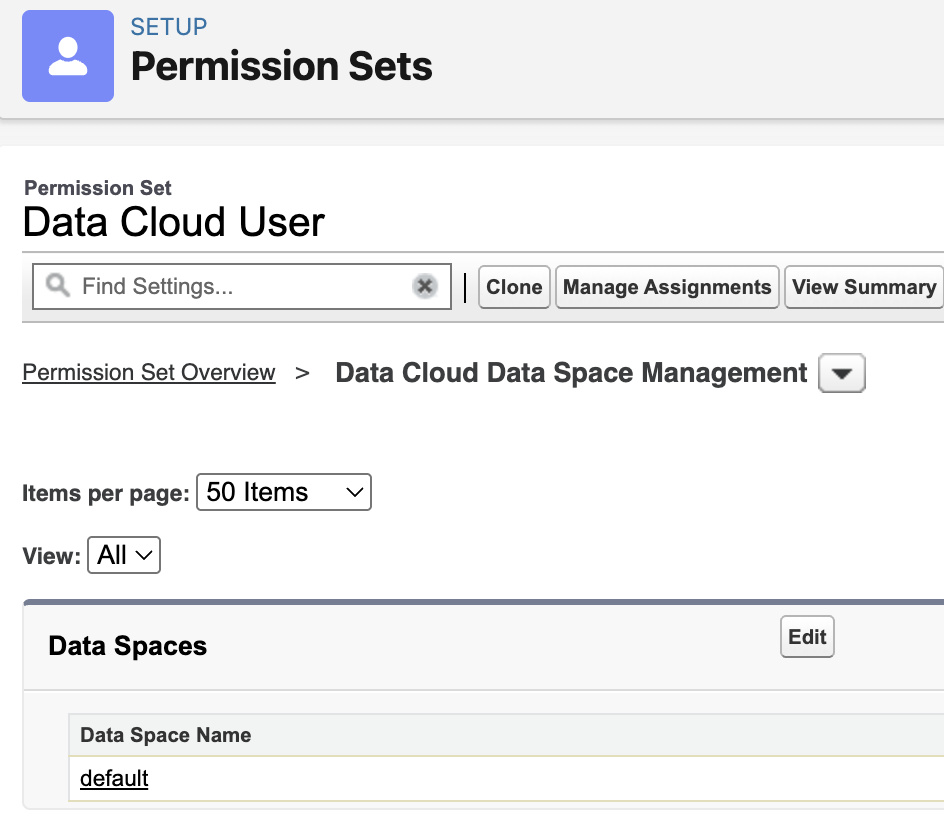
Note:
If you are custom Data Spaces, make sure they are selected in “Data Cloud Data Space Management“.
Proactive Tips for Admins
To prevent this issue from happening in the future, consider these best practices:
- Automate User Onboarding: Incorporate the “Data Cloud User” permission set assignment into your standard user setup process for anyone who will be working with Data Cloud.
- Use Permission Set Groups: For more complex scenarios, bundle the
Data Cloud Userpermission set with other required permissions into a single Permission Set Group (e.g., “Marketing Cloud Intelligence User”). This makes assigning roles much simpler. - Understand Other Data Cloud Permissions: Familiarize yourself with other key permission sets like
Data Cloud Adminto properly manage roles and adhere to the principle of least privilege.
Conclusion
That’s it! The intimidating “Looks like you don’t have access to the data space” error is almost always resolved by assigning the standard Data Cloud User permission set. By understanding that most Data Cloud roadblocks are rooted in permissions, you can troubleshoot more efficiently and empower your team to leverage this powerful platform without friction.