Your team already works in Slack, so Salesforce actions should be available there too. You can orchestrate a Salesforce Agentforce agent in Slackbot by exposing the agent through a Salesforce MCP Server and enabling that server in Slackbot. This guide walks through the full setup, from linking Salesforce and Slack to enabling the MCP Server in Slackbot.
Who this is for: Salesforce Admins, Consultants, Analysts, Developers, Architects, and Software Engineers.
What You Will Build
By the end of this guide, you will have:
- A Slack workspace connected to your Salesforce org.
- A Salesforce MCP Server that exposes your Employee Agentforce Agent.
- Slackbot with the MCP Server enabled, so it can invoke the agent.
Prerequisites
Before you start, make sure you have the following:
- A linked Salesforce org and Slack workspace. If you haven’t linked them yet, follow this guide first: Create Salesforce Records from Slack – Step-by-Step Guide.
- An Employee Agentforce Agent in your Salesforce org.
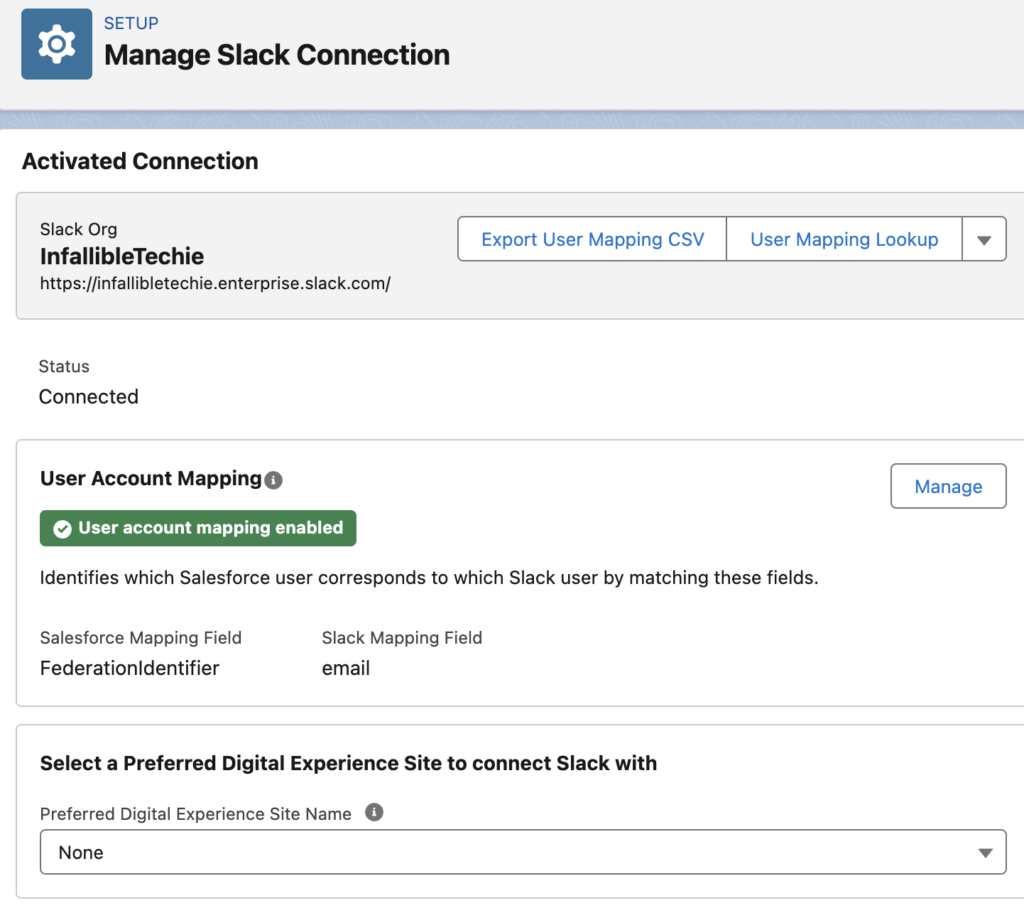
Step 1: Connect the Salesforce Org to Slack
In Slack, use the Manage Salesforce Organizations option to connect your Salesforce org to the Slack workspace.
Step 2: Add the Slack User to the Salesforce Org
Add the Slack user to the Salesforce org, so Slack identities map to Salesforce users.
Step 3: Authorize Salesforce from Slack
Authorize Salesforce from Slack, so Slack can act on behalf of the connected Salesforce user.
Step 4: Create and Activate the Salesforce MCP Server
- In Salesforce, go to Setup and search for MCP Servers.
- Click Add MCP Server.
- Click + Create Salesforce MCP Server.
- Enter the Label, Name, and Description.
- Click Next.
- Select Add Server Assets, then select Add from Server.
- Select your Employee Agentforce Agent.
- Click Add Tools and select Invoke.
- Activate the MCP Server.
The Invoke tool is what lets Slackbot call your Employee Agentforce Agent through this MCP Server.
Step 5: Enable the MCP Server in Slackbot
Open MCP Servers in Slack. Click “+ Add Server” and select the MCP Server.
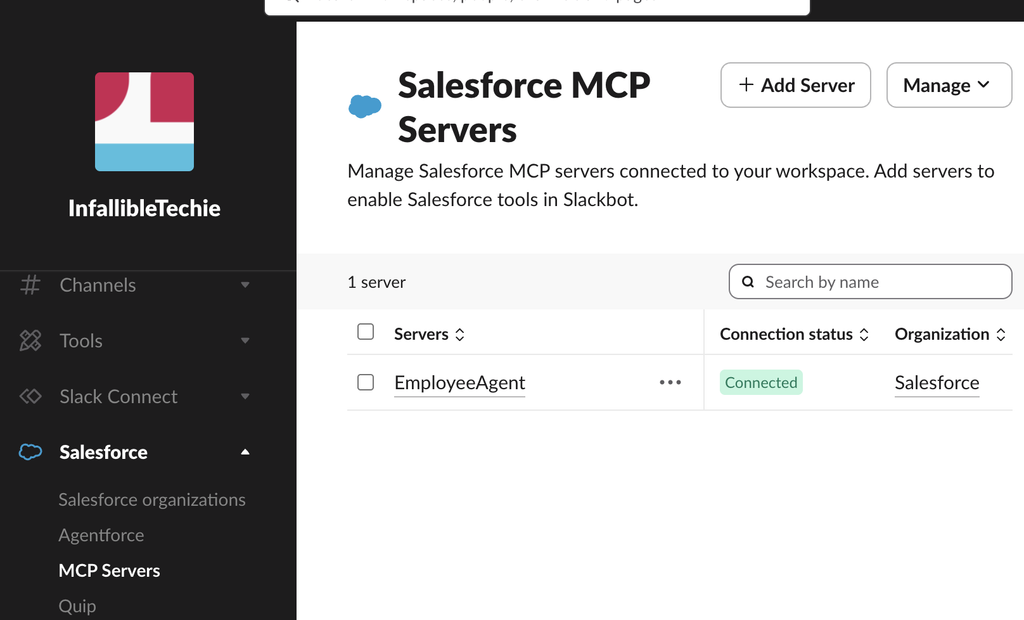
Also, enable the MCP Server in your Slack application.
- Open Slackbot in Slack.
- Select Apps.
- Enable the newly added MCP Server.
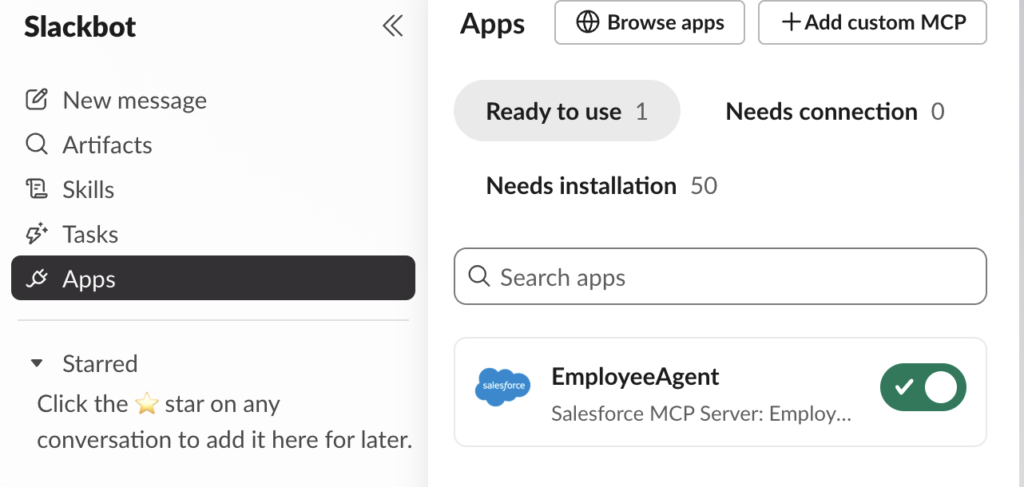
Slackbot can now orchestrate your Salesforce Agentforce agent.
Quick Recap
| # | Where | Action |
|---|---|---|
| 1 | Slack | Connect org via Manage Salesforce Organizations |
| 2 | Salesforce | Add the Slack user to the org |
| 3 | Slack | Authorize Salesforce |
| 4 | Salesforce Setup | Create the MCP Server, add the Employee Agentforce Agent, add the Invoke tool, activate |
| 5 | Slackbot | Apps → enable the MCP Server |
Recommendations and Best Practices
No code snippet was provided, so nothing in your content was changed. These recommendations come from general Salesforce and Slack practice, not from the steps above. Validate them against current Salesforce documentation before publishing [TBD: add official docs links].
- Test in a sandbox first. Run the full setup in a sandbox or Developer Edition org before touching production.
- Apply least privilege. Expose only the agent and the tools you need. This setup needs the Invoke tool, so don’t add others without a reason.
- Check access for the Slack user. The agent acts in the context of the connected Salesforce user, so confirm that user has the right permissions and agent access.
- Use clear names and descriptions. A descriptive MCP Server Label, Name, and Description helps admins and users tell servers apart, and may help Slackbot choose the right one.
- Keep the agent scope focused. An agent built for a specific employee use case is easier to test and secure than a broad one.
- Activate only when ready. Keep the server inactive until the agent has been tested.
- Document the setup. Record which agent is exposed, which tools are enabled, and who owns the server.
FAQ (good for featured snippets)
What do I need to orchestrate an Agentforce agent in Slackbot?
A linked Salesforce org and Slack workspace, plus an Employee Agentforce Agent.
Where do I create the MCP Server?
In Salesforce Setup, under MCP Servers.
Which tool lets Slackbot call the agent?
The Invoke tool, added from the server’s assets.
Where do I enable the server in Slack?
In Slackbot → Apps.
Conclusion
Setting up Slackbot to call an Agentforce agent takes five steps: connect, add the user, authorize, create the MCP Server, and enable it in Slackbot. Try it in a sandbox first, and share your results in the comments.