Supercharge Your Salesforce Messaging with Dynamic Content
In today’s fast-paced digital world, personalization is key. Customers expect interactions to be tailored to them, and generic, one-size-fits-all messages just don’t cut it. For businesses using Salesforce, Messaging Components are a fantastic tool for creating reusable content for channels like SMS and WhatsApp. But how can you make these messages personal and relevant at scale?
The answer is Dynamic Content. This blog post will show you how to leverage a simple but powerful feature to transform your customer conversations.
What is Dynamic Content?
Think of dynamic content as a “mail merge” for your messaging channels. Instead of sending the same static text to everyone, you can create templates that automatically pull in specific information for each customer. This could be their name, a case number, an order status, or any other relevant data stored in Salesforce.
This small touch makes the customer feel acknowledged and can significantly improve the efficiency and clarity of your communication.
The Magic Formula: Using Parameters
Salesforce makes it easy to insert dynamic content using Parameters. These are special placeholders that fetch data from the context of the ongoing conversation.
The syntax is straightforward:
{!$Parameters.MessagingSession.<Field API Name>}
Let’s break that down:
{! ... }: This is the standard merge field syntax in Salesforce.$Parameters: This is the global variable that gives you access to contextual data.MessagingSession: This is the Salesforce object that represents the current conversation. It holds key details about the interaction.<Field API Name>: This is where you specify the exact piece of information you want to pull from theMessagingSessionrecord.
A Practical Example: Adding a Reference Number
Let’s walk through a common use case: automatically including the unique reference number in a message. In this scenario, we’ll use the Name field on the MessagingSession object, which typically holds the session’s reference number.
Step-by-Step Configuration
- Navigate to Setup and search for “Messaging Components”. Click New.
- Select the Text component type, which is supported across all messaging channels.
- In the Component Properties pane on the right, you’ll configure the content.
- For the Type, select Template. This allows you to use formula-based logic and merge fields.
- In the Formula Template text box, you can now write your message and insert the dynamic parameter.
As you can see in the image below, we’re crafting a message that includes the reference number automatically.
The template text is:
Please share your feedback!!!
Your Reference Number is
{!$Parameters.MessagingSession.Name}
Reply STOP to unsubscribe.
The Result
When this component is used in a flow or by an agent, Salesforce replaces the parameter with the actual data from the active session.
- Your Template:
Your Reference Number is {!$Parameters.MessagingSession.Name} - What the Customer Sees:
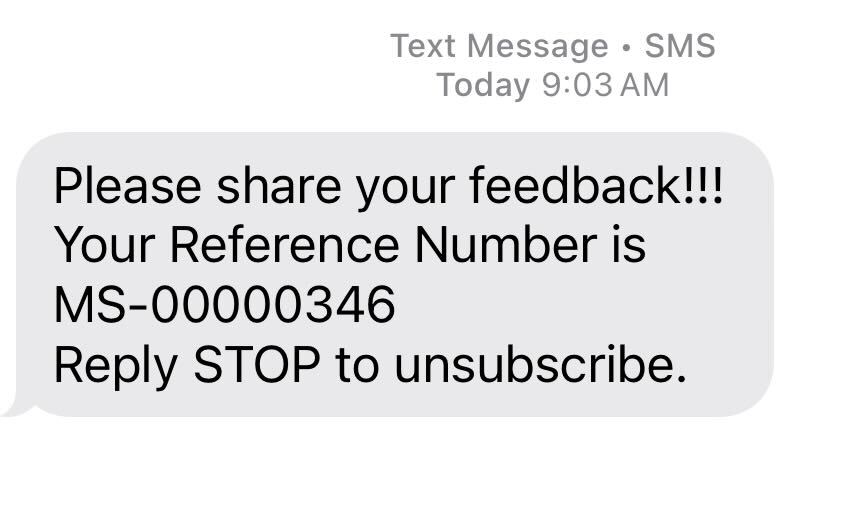
Your Reference Number is 00012345
It’s that simple! You’ve just created a personalized, error-proof message that adds immediate value to the conversation.
Why Should You Use Dynamic Content?
Integrating parameters into your Salesforce Messaging Components offers several key benefits:
- ✅ Enhanced Personalization: Directly referencing case or session numbers makes the interaction feel unique and professional.
- ⚙️ Improved Agent Efficiency: It saves your support agents valuable time and clicks. They no longer need to manually copy and paste information, allowing them to focus on solving the customer’s problem.
- 📉 Reduced Human Error: Automating data entry eliminates the risk of typos or pasting the wrong information.
- 🚀 Scalable Communication: You can send thousands of personalized messages as easily as you can send one, which is crucial for automation and bulk notifications.
Start exploring the fields on the MessagingSession object and think about what information would be most helpful to include in your standard messages. Using dynamic content is a simple change that can have a big impact on your customer service operations.
Output:
To know more about sending Enhanced SMS notifications using Salesforce Flow, please check the following:
Help Article: