Invoke Slackbot in Salesforce: Setup Guide
Introduction
You can invoke Slackbot in Salesforce Lightning Experience without leaving the record you’re working on. Slackbot is a personal agent for work built into Slack and Salesforce, and Slackbot features such as web search, tasks, and skills also work inside Salesforce.
This guide is written for Salesforce Consultants, Analysts, Admins, Developers, Architects, and Software Engineers. It covers the Salesforce-side configuration that makes Slackbot available to your users.
In this post, you will learn:
- The prerequisite: connecting Salesforce and Slack
- How to create a permission set for Slackbot
- How to enable the Slackbot UI system permission
- How to assign the permission set to users
- Recommendations and best practices for rollout
Note: Owners and admins on Slack’s Business+ and Enterprise plans can enable Slackbot from the AI settings page in Slack. Confirm your Slack plan before you start.
Prerequisite: Connect Salesforce and Slack (One-Time Setup)
Slackbot can only appear in Salesforce once your org and Slack workspace are linked. This is a one-time setup, and it is covered step by step in Create Salesforce Records from Slack: Step-by-Step Guide.
In short:
- In Slack, open the Salesforce app and select Manage Salesforce Organizations.
- Choose the target environment, Production or Sandbox.
- In Salesforce, go to Setup, search for Manage Slack Connection in Quick Find, and accept the pending request.
- Hard refresh Slack (Ctrl + Shift + R on Windows, Cmd + Shift + R on Mac).
If users were not already granted access to Salesforce in Slack, you also need to map them manually after the org is connected.
How to Invoke Slackbot in Salesforce (Step-by-Step)
Slackbot access in Lightning Experience is controlled by a system permission. The setup has three parts.
Step 1: Create a Permission Set in Salesforce
- Log in to Salesforce and go to Setup.
- In the Quick Find box, enter Permission Sets and select it.
- Click New.
- Enter a Label (for example,
Slackbot Access). The API Name fills in automatically. - Add a description, such as “Allows users to invoke Slackbot in Lightning Experience”, then click Save.
You can also reuse an existing custom permission set instead of creating a new one. slack
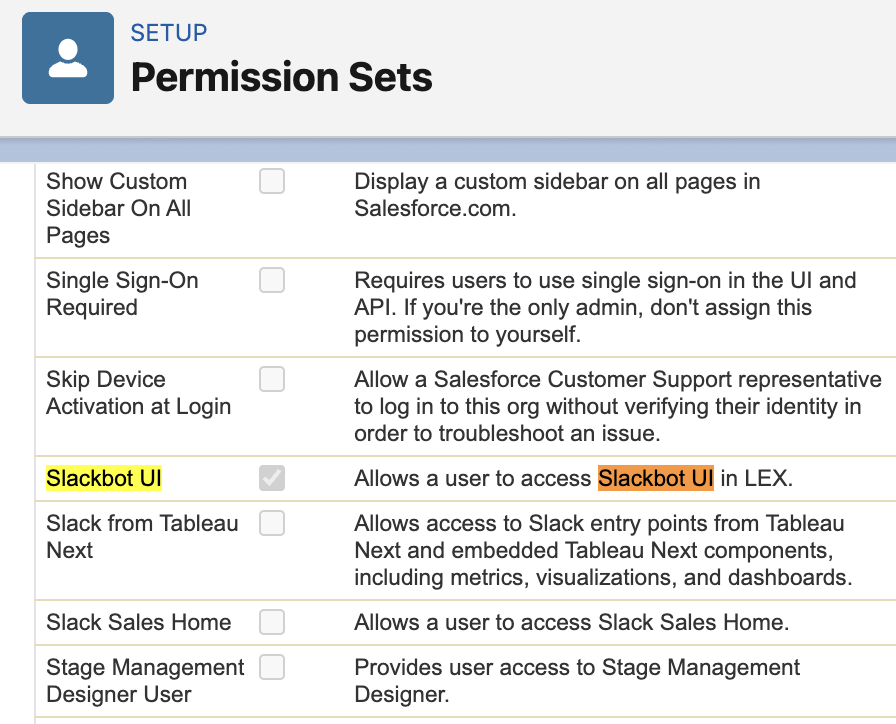
Step 2: Enable the “Slackbot UI” Permission
- Open the permission set you just created.
- Click System Permissions.
- Click Edit.
- Select the Slackbot UI checkbox.
- Click Save.
Step 3: Assign the Permission Set to Users
Assign the permission set to every user who should invoke Slackbot in Lightning Experience.
- In the permission set, click Manage Assignments.
- Click Add Assignments.
- Select the users and click Next.
- Click Assign, then Done.
You can optionally set an expiration date for the assignment. That is useful for pilots and time-boxed access. slack
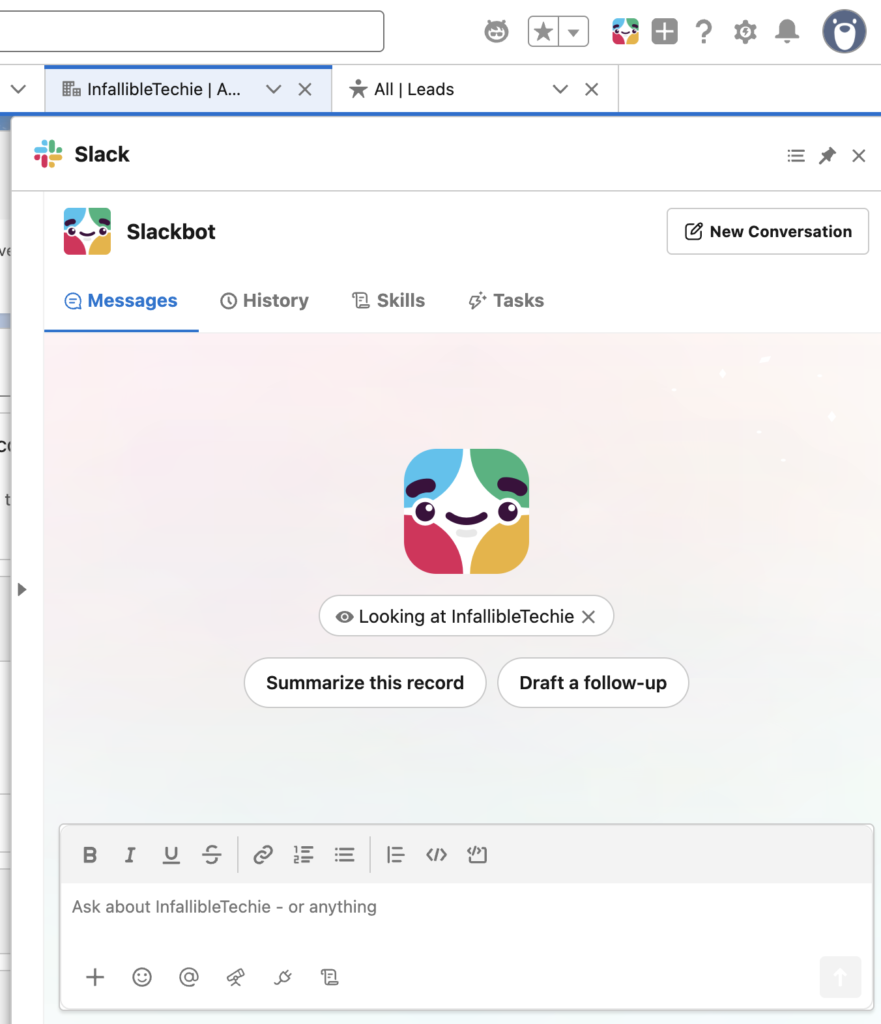
Step 4: Invoke Slackbot in Lightning Experience
Ask an assigned user to refresh their Salesforce session and open any Lightning page.
Who Benefits (by Persona)
- Admins and Consultants: Control access with a single permission set and demo Slackbot during discovery and training.
- Analysts: Get assistance while reviewing records, without switching tools.
- Developers, Architects, and Software Engineers: Validate the connection in a Sandbox, and treat Slack and Slackbot as part of your integration landscape.
Frequently Asked Questions
What permission do I need to invoke Slackbot in Salesforce?
Users need the Slackbot UI system permission, granted through a permission set. The steps above show how to create and assign it.
Do I need to connect Salesforce and Slack first?
Yes. The org and workspace connection is a prerequisite and is a one-time setup.
Can I use an existing permission set?
Yes. You can add Slackbot UI to an existing custom permission set. A dedicated permission set is easier to audit and remove later.
Does Slackbot use Flex Credits?
To use Flex Credits for Slackbot, a Salesforce Admin must approve their use in the org. In Setup, open Settings, then Slackbot, select the org and click Connect. Check this with your Salesforce account team before rollout.
Conclusion
To invoke Slackbot in Salesforce, connect your org to Slack once, create a permission set, enable Slackbot UI under System Permissions, and assign it to your users. Pilot with a small group in a Sandbox, then roll it out more widely.
Recommendations and Best Practices
No code snippet was shared, so these come from the setup steps. Validate each one in your own org before publishing.
- Pilot in a Sandbox first. The connection lets you choose Production or Sandbox, so prove the flow before linking Production.
- Use a dedicated permission set. A permission set named for Slackbot keeps access easy to audit, assign, and revoke.
- Assign by need, not by default. Grant it only to users who will use Slackbot. Consider a permission set group for larger rollouts.
- Use assignment expiry for pilots. The optional expiration date helps control trial access.
- Hard refresh after connecting. If features are missing, refresh Slack and the Salesforce session before troubleshooting.
- Confirm user mapping. Unmapped users may not get access to Salesforce in Slack.
- Confirm plan and credit requirements early. Check your Slack plan and the Flex Credits approval with your Slack Owner and Salesforce Admin.
- Working hypothesis: Slackbot respects each user’s existing Salesforce object and field permissions. Validate this with a test user before rollout.