Learn how to configure Salesforce Agentforce Agent Analytics. This technical guide covers prerequisites, required permission sets, and step-by-step installation instructions for admins and developers.
Mastering Salesforce Agentforce Agent Analytics: A Complete Setup Guide
As Salesforce continues to expand its AI capabilities, understanding how your AI agents perform is critical. Whether you are a Data Analyst, Salesforce Administrator, Developer, or Technical Architect, gaining visibility into agent sessions is non-negotiable for system health and optimization.
Enter Salesforce Agentforce Agent Analytics.
In this guide, we will break down exactly what this tool is, the prerequisites required, and a step-by-step technical walkthrough on how to set it up in your Salesforce org.
What is Salesforce Agentforce Agent Analytics?
Salesforce Agentforce Agent Analytics is a robust tool specifically designed for comprehensive session analysis. Under the hood, it is built on the unified Session Tracing Data Model (STDM).
Instead of relying on fragmented logs, STDM captures every turn and event occurring within and across all your agent sessions. This unified tracking provides developers and architects with granular, real-time insights into how Agentforce agents are interacting, failing, or succeeding within your ecosystem.
Prerequisites and Required Permissions
Before diving into the setup, you must ensure your org environment is properly configured. Missing a single permission set or prerequisite will cause the installation to fail.
Required Permission Sets
Assign the following permission sets to the deploying user to ensure seamless configuration:
- Data Cloud UserData Cloud Admin
- Tableau Next Platform Analyst
- Tableau Next Limited Consumer
- Agentforce Service Agent Configuration
Org Prerequisites
Confirm the following features are provisioned and active in your Salesforce Org:
- Data 360 (Data Cloud): Must be fully provisioned and enabled.
- Einstein: Must be turned on.
- Active Agent: You must have at least one active Agentforce agent running in the environment.
Step-by-Step Setup Guide
Follow these steps to install and enable Agent Analytics in your environment.
Step 1: Verify the Salesforce Standard Data Model Version
To support STDM, your org (sandbox or production) must be running the latest version of the Salesforce Standard Data Model (version 1.128 or higher).
- Navigate to Setup.
- Go to Apps > Packaging > Installed Packages.
- Look for Salesforce Standard Data Model and verify the version number.
If you need to upgrade to the required version, use the following link and follow the on-screen instructions:
https://login.salesforce.com/packaging/installPackage.apexp?p0=04tKe000000PbvE
Step 2: Enable Session Tracing
Session tracing is the engine that feeds your analytics data model. Enabling this automatically provisions the required Analytics data model entities needed to perform complex data queries.
- From Setup, search for and navigate to Einstein Audit, Analytics, and Monitoring Setup.
- Locate Agentforce Session Tracing.
- Toggle the feature to On (if it is not already enabled).
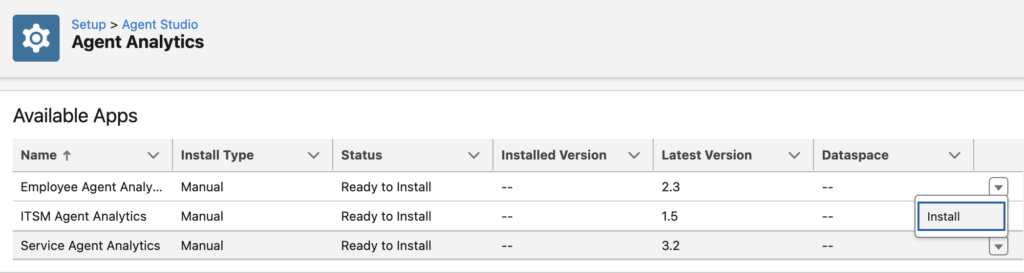
Step 3: Install Agent Analytics
With tracing enabled and the data models updated, you can finalize the installation.
- From Setup, navigate to Agent Analytics.
- Click the Install Option to deploy the required Agent Analytics components into your org.
Recommendations and Best Practices
To ensure a smooth deployment and optimal performance of your Agentforce Analytics, keep these technical best practices in mind:
- Always Test in a Sandbox First: Because updating the Salesforce Standard Data Model affects core data architecture, always deploy and test the package upgrade (v1.128+) in a Developer Pro or Full Sandbox before pushing to Production.
- Monitor Data Cloud Storage: STDM captures every turn and event. Depending on your agent’s transaction volume, this can consume Data Cloud storage quickly. Monitor your ingestion rates and establish data retention policies early.
- Audit Tableau Next Permissions: The
Tableau Next Limited ConsumerandTableau Next Platform Analystpermission sets grant specific analytical viewing rights. Ensure these are only assigned to the analysts and stakeholders who actively need to query or build dashboards against the session data, adhering to the principle of least privilege. - Query Optimization: When querying the newly provisioned Analytics data model entities, ensure your SOQL or Data Cloud queries are properly filtered (e.g., by date ranges or specific agent IDs) to avoid performance bottlenecks on high-volume session data.