In this Blog Post, you will learn how to sign up for a Salesforce Partner Simple Demo Org (SDO) step-by-step through the Partner Learning Camp. Master SDO provisioning for demos, PoCs, and architectural validation.
How to Sign Up for a Salesforce Partner SDO Org: Step-by-Step Guide
Salesforce Simple Demo Orgs (SDOs) are essential environments for Salesforce Consultants, Admins, Developers, and Architects. Pre-loaded with rich sample data, configured business processes, and enabled enterprise features, an SDO allows technical teams to build proof-of-concept (PoC) solutions, conduct client demonstrations, and test complex architectural patterns without configuring a trial org from scratch.
This guide details the exact step-by-step process for provisioning a Salesforce Partner SDO Org through the Salesforce Partner Learning Camp (PLC).
Prerequisites for SDO Org Provisioning
Before requesting a Simple Demo Org, ensure you have:
- An active Salesforce Partner Community user account linked to your consulting or ISV partner company.
- Proper login credentials associated with your partner domain.
Step-by-Step: Requesting Your Salesforce Partner SDO Org
Follow these steps to access and request your SDO environment:
Step 1: Log in to the Salesforce Partner Community
Navigate to the official Salesforce Partner Community login page:
Sign in using your partner user credentials.
Step 2: Access the Learn Tab
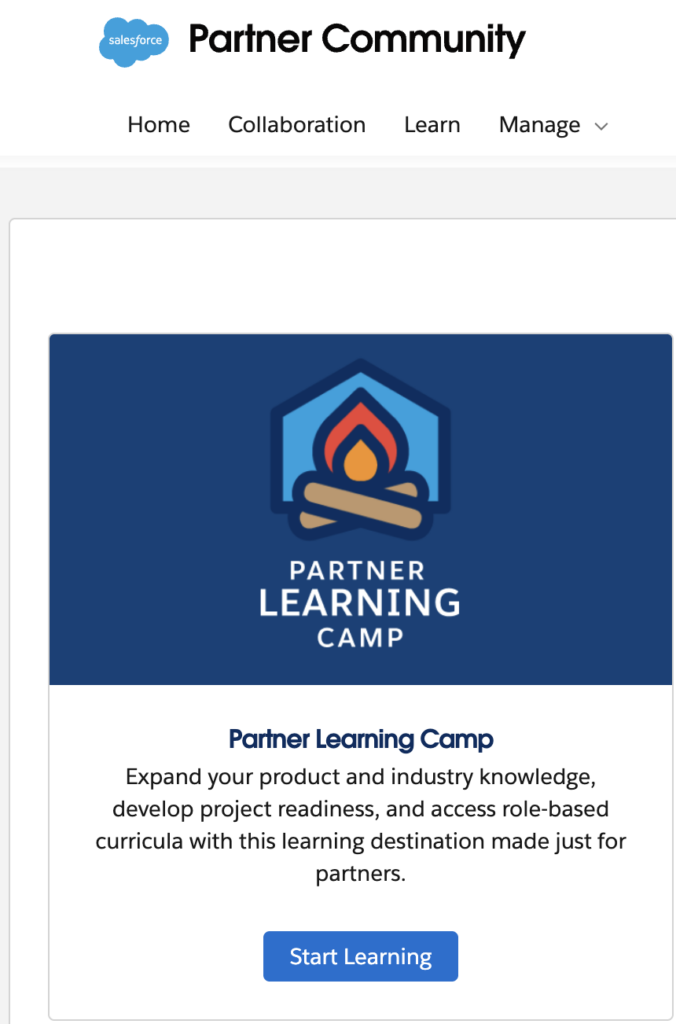
Once logged into the Partner Community dashboard, navigate to the primary navigation bar at the top of the screen and select the Learn tab.
Step 3: Navigate to Partner Learning Camp (PLC)
Within the Learn section, locate the Partner Learning Camp card or banner.
Click the Start Learning button. This will redirect you to the Partner Learning Camp portal:
Step 4: Authenticate into Partner Learning Camp
When redirected to the Partner Learning Camp portal, complete the single sign-on (SSO) or login prompt to establish your session:
- Click Login (or re-authenticate with your Partner credentials if prompted).
Step 5: Request the Demo Org
Once inside the Partner Learning Camp portal:
- Locate the top navigation menu.
- Click on the Demo Org tab.
- Choose SDO as the Demo Type.
- Fill in the required org request form.
- Click Submit / Request.
You will receive an email confirmation with login credentials once the org provisioning process is completed by Salesforce.
Recommendations & Best Practices
To maximize the value of your Salesforce Partner SDO and avoid common maintenance pitfalls, keep these best practices in mind:
- Monitor Expiration Dates: SDO orgs are temporary environments (typically valid for 30 to 90 days depending on partner tier and configuration). Track the expiration date in your calendar if you are using the org for long-term PoC builds.
- Do Not Use for Production Data: SDOs are unmanaged test environments containing pre-populated dummy data. Never upload Real Personally Identifiable Information (PII) or customer production data into an SDO.
- Isolate PoC Configurations: If multiple Architects or Developers share a single SDO, use distinct package namespaces or custom apps to prevent overwriting metadata, automation flows, or Apex triggers.
- Keep Credentials Secure: SDOs often come with pre-configured System Administrator access. Store the generated admin credentials in a secure secrets manager or password vault.
- Leverage Pre-Built Data: Take advantage of built-in features such as pre-configured OmniStudio components, Flow templates, and Einstein capabilities rather than rebuilding standard objects from scratch.