Introduction: ground your prompts in record files
You can use record related files in a prompt template by adding a record’s Notes & Attachments related list as a resource in a Flex prompt template. Prompt Builder then passes the Salesforce Files attached to that record, such as an Account, to the model as input when the prompt runs.
This matters for teams that review documents and images for every record. Salesforce’s own example is a Business Analyst who evaluates service providers and spends hours reading multiple files and images per provider; a prompt that can process file input helps automate the analysis and summary (Salesforce Help).
In this guide, Consultants, Analysts, Admins, Developers, Architects, and Software Engineers will learn the three configuration steps, what to check before you test, and the recommendations worth applying before you roll this out.
Why use record related files in a prompt template?
Record fields describe a record; the files attached to it often hold the detail. Adding related files to a prompt gives the model more of that context in one run.
- Less manual review. Analysts no longer open each file to summarize it before they decide.
- Reusable by design. The template takes the record as an input, so the same prompt runs for any record of that object.
- Admin-friendly. You configure it in Prompt Builder with point-and-click resources, with no custom code for the file grounding itself.
- Previewable. You can pick a test record and preview the resolved prompt, including the attached images, before you save and use it.
Prerequisites
Confirm these before you start:
- Permissions. Salesforce lists the Prompt Template Manager permission set (Manage Prompt Templates and Execute Prompt Templates) or the Customize Application permission to create and manage prompt templates in Prompt Builder.
- Salesforce Files on the record. Prompt Builder grounds related-list files that are Salesforce Files. Classic Attachment records are not supported.
- A model that accepts file input. Salesforce’s walkthrough selects GPT 4 Omni under Template Properties. Confirm which models in your org support file inputs.
- A test record. Use a record, such as an Account, that already has files in its Notes & Attachments related list.
Step 1: Create a Flex prompt template
Open Prompt Builder and start a new prompt template.
- In the Prompt Template Type dropdown, select Flex.
- Enter a Prompt Template Name, for example
Analyze Account. - Add a description that says what the template does, for example
Summarize a company description and check its relevance using files.
Why Flex? A Flex template lets you define your own inputs, which is what you need to pass a record and its related files into the prompt.
Step 2: Use Source Type Object for the input
Define the record that will supply the related files.
| Field | Value (example) |
|---|---|
| Name | Account |
| API Name | Account |
| Source Type | Object |
| Object | Account |
Select your own object in the Object field if you are not working with Accounts. Click Next to open the Prompt Template Workspace.
Step 3: Insert Notes & Attachments as a resource
In the Prompt Template Workspace, add the record’s related files to the prompt.
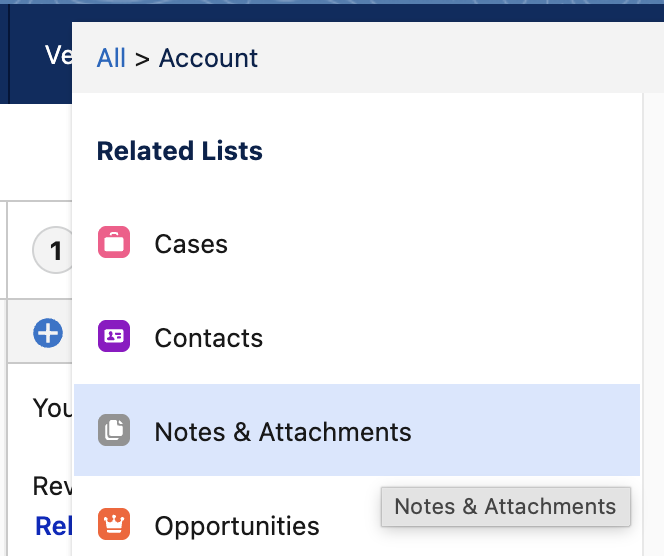
- In the Prompt section, click Insert Resource. The search field appears the first time you click it.
- In the Resource picker, select the input with the Object source type, for example Account.
- Select Notes & Attachments, for example Account → Notes & Attachments.
- In Template Properties, choose a model that supports file input, then click Save.
- Select a test record and click Preview. In the Resolution, the attached images can also be previewed.
Prompt Builder grounds the files in this related list that are Salesforce Files. If a file does not appear in the resolved prompt, see the recommendations below.
Sample Prompt
You are a Salesforce assistant helping analyze account documentation.

Review the attached records provided below:
{!$RelatedList:Account.CombinedAttachments.Records}

Based ONLY on the information contained in the attachments above, answer the following request:
"{!$Input:Sample_Text}"

Instructions:
1. Rely strictly on the provided attachments. Do not make assumptions or use outside knowledge.
2. If the attachments do not contain the necessary details to answer the request, state clearly: "The provided account attachments do not contain sufficient information to answer this question."
3. Keep the answer clear, professional, and well-structured.
Best practices and recommendations
The first three come from Salesforce documentation; the rest are working recommendations to validate in your own org.
- Use Salesforce Files, not classic Attachments. Classic Attachment records are not included in the resolved prompt. If a file from Notes & Attachments is missing, convert it to a Salesforce File or upload it from the Filesrelated list, then preview again. File size and system limits are not the cause, per Salesforce.
- Pick a model that supports file input. Select it under Template Properties and confirm the result in Preview before you save.
- Grant least-privilege access. Give builders the Prompt Template Manager permission set (or Customize Application) only where they need it.
- Always preview with a representative record. Test records with several files, with no files, and with mixed file types, so the prompt behaves predictably in each case. Recommendation; validate against your use case.
- Screen files for sensitive data. Attached files can contain personal or confidential information. Decide which record types and files are appropriate to ground before you enable the template. Recommendation; align with your organization’s data-handling policy.
- Keep a human in the loop. Treat generated summaries as drafts and have a person review them before they inform a customer-facing decision. Recommendation.
FAQs
Can I use record related files in a prompt template with classic Attachments?
No. Prompt Builder grounds related-list files that are Salesforce Files, and classic Attachment records are not supported.
Which template type do I need?
A Flex prompt template, with an input whose Source Type is Object.
Where do I add the related files?
In the Prompt section, click Insert Resource, select the Object input, then choose Notes & Attachments.
Which permissions do I need?
The Prompt Template Manager permission set (Manage Prompt Templates and Execute Prompt Templates) or the Customize Application permission.
How do I check that it works?
Save the template, select a record, and click Preview. The Resolution shows the resolved prompt, including attached images.
Conclusion
Using record related files in a prompt template takes three steps: create a Flex template, add an Object input, and insert Notes & Attachments through Insert Resource. Once configured, any record of that object can supply its files to the prompt. Try it in a sandbox with a representative record, then share what you learn with your team.
Sources
- Add a Related List with File Inputs to a Flex Prompt Template (Salesforce Help)
- Add File Inputs to a Flex Prompt Template (Salesforce Help)