Exception:
Something went wrong. Refresh and try again.Troubleshooting: How to Fix the “Something Went Wrong” Error in Salesforce Agentforce Activation
If you are a Salesforce Architect, Developer, or Admin, you’ve likely encountered the frustratingly vague “Something went wrong. Refresh and try again” error while trying to activate your Agentforce Agent.
Despite the ambiguity of the message, the root cause is almost always tied to a specific permissions gap or a configuration toggle. This post breaks down the technical resolution to get your autonomous agents back online.
The Error Context
When attempting to launch or activate an agent within the Agent Builder, the system performs a validation check on the associated Einstein Agent User. If the underlying service user lacks the necessary authorization to execute agent actions, the activation fails immediately.
Exception Message:
Something went wrong. Refresh and try again.
Step-by-Step Resolution
To resolve this activation failure, follow these steps to ensure the security layer and global settings are correctly aligned.
1. Enable Global Requirements
Before diving into permissions, verify that the foundation is active.
- Navigate to Salesforce Setup.
- Ensure Einstein Setup is toggled to On.
- Ensure Agentforce is toggled to On.
2. Identify the Agent User
Every Agentforce Agent operates under the context of a specific user.
- Search for Agents in the Setup Quick Find box.
- Select your specific Agent and open it in the Agent Builder.
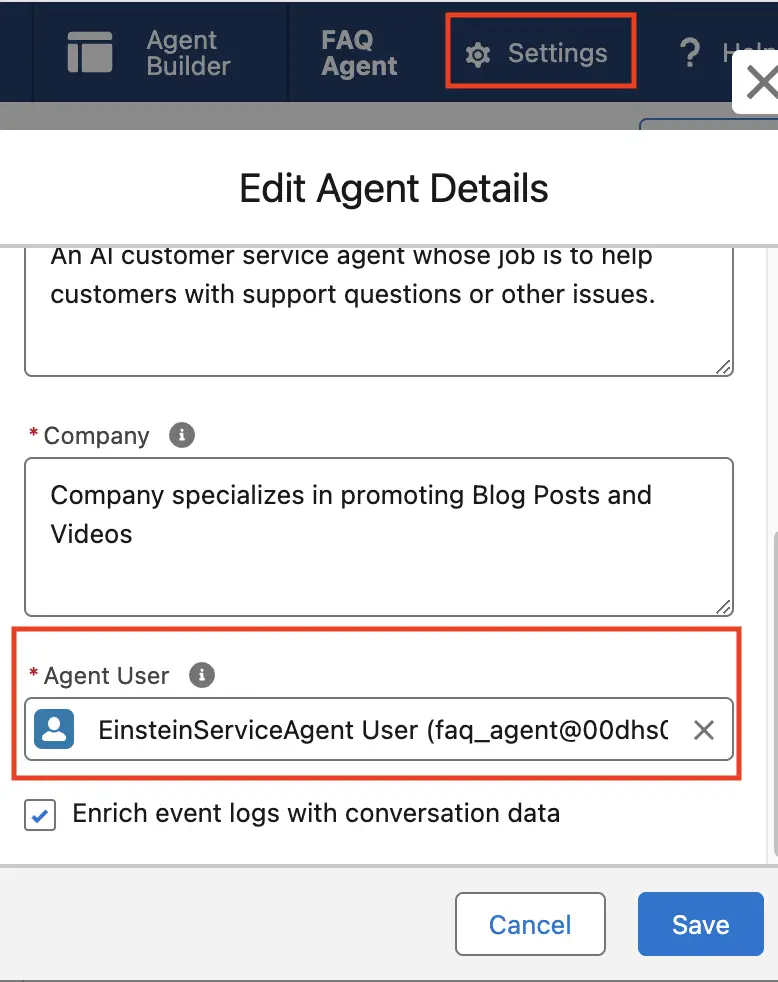
- Click on Settings.
- Locate the Agent User assigned to that specific agent.
3. Assign the Correct Permission Set
The “Something went wrong” error is typically triggered because the Agent User identified in Step 2 lacks the functional “keys” to run.
- Go to the User record of the assigned Agent User.
- In the Permission Set Assignments related list, click Edit Assignments.
- Add the Agentforce Service Agent User permission set.
- Save the changes.
Please make sure the Einstein Agent User have “Agentforce Service Agent User” Permission Set assigned.
- Go to Salesforce Setup.
- Search for Agents.
- Select the Agent and open in Agent Builder.
- Click Setting.
- Check the Agent User assigned to the agent.
- Assign “Agentforce Service Agent User” Permission Set to the Agent User to fix the error or exception.
Technical Best Practices & Recommendations
Based on the implementation logic for Agentforce, here are a few recommendations to ensure long-term stability:
- Dedicated Integration User: It is a best practice to use a dedicated “Integration” or “Service” user for Agentforce rather than a standard Admin user. This ensures that the agent’s actions are audited separately in the debug logs.
- Least Privilege Principle: Only assign the Agentforce Service Agent User permission set to the specific user running the agent. Avoid “blanket” assignments to all admins to maintain a tight security posture.
- Refresh Strategy: After assigning the permission set, fully log out and log back into the Salesforce instance before attempting activation in the Agent Builder to ensure the session cache is updated.