How to Update Account and Contact on Salesforce Messaging Sessions (The Right Way)
If you are working with Salesforce Digital Engagement or Messaging, you have likely encountered a frustrating scenario: You are viewing a Messaging Session record, and you need to correct the linked Account or Contact. However, when you try to edit the fields, they are locked.
While fields like Case, Lead, and Opportunity are fully editable on the Messaging Session, the Messaging User Account (EndUserAccountId) and Messaging User Contact (EndUserContactID) are strictly read-only.
In this post, we will explain why these fields are locked and walk you through the simple steps to update them correctly.
The Architecture: Why are these fields Read-Only?
To understand the solution, you have to understand the data model. The MessagingSession object does not actually “own” the relationship to the Account or Contact. Instead, it inherits this data from a parent object called the Messaging User (MessagingEndUser).
- Messaging User (
MessagingEndUser): This represents the person (phone number, Facebook ID, WhatsApp number) you are talking to. This is where the links to the specific Account and Contact live. - Messaging Session (
MessagingSession): This is the actual conversation transcript. It simply references whatever Account or Contact is currently defined on the Messaging User.
Because of this relationship, you cannot update the EndUserAccountId or EndUserContactID directly on the session. You must go to the source.
Note: You can directly edit the Case, Lead, and Opportunity lookup fields on the Messaging Session object, as these are specific to that individual conversation instance.
Step-by-Step: How to Update the Messaging User Account/Contact
If you need to change the Account or Contact reflected on a session, you must update the Messaging End User record. Here is how to do it.
1. Identify the Current State
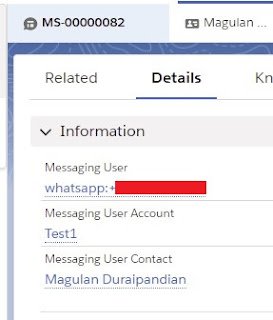
Navigate to your Messaging Session. In the example below, notice that the Messaging User Account is currently set to “Test1”. This value is being pulled directly from the associated Messaging User.
2. Open the Messaging User Record
Look for the field labeled Messaging User (or “End User”) on the Messaging Session layout. Click the link to open that record.
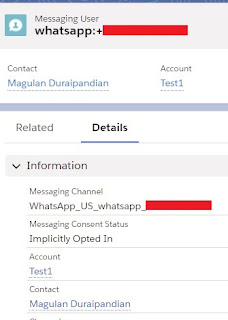
3. Update the Source Record
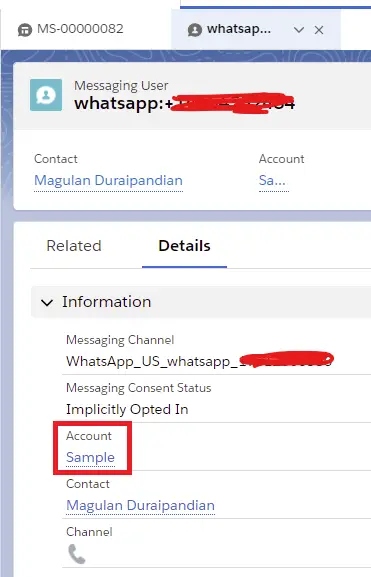
Once you are on the Messaging User record, click Edit.
- Locate the Account field and change it to the correct value (e.g., “Sample”).
- Locate the Contact field and update it if necessary.
- Click Save.
4. Verify the Change
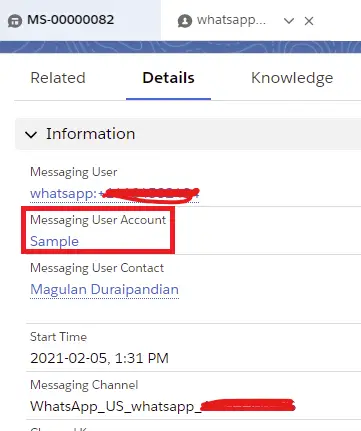
Navigate back to your original Messaging Session and refresh your browser. You will see that the Messaging User Account has automatically updated to “Sample”.
Summary Table: What Can You Edit?
To help you manage your page layouts and permissions, here is a quick reference on which standard relationship fields are writable on the MessagingSession object.
| Field Name | API Name | Editable on Session? | Where to Edit |
| Messaging User Account | EndUserAccountId | No | Edit on MessagingEndUser record |
| Messaging User Contact | EndUserContactId | No | Edit on MessagingEndUser record |
| Case | CaseId | Yes | Edit directly on MessagingSession |
| Lead | LeadId | Yes | Edit directly on MessagingSession |
| Opportunity | OpportunityId | Yes | Edit directly on MessagingSession |
Conclusion
Salesforce’s data model for Messaging is designed to keep customer identity consistent across multiple conversations. By understanding that the Messaging User record acts as the “source of truth” for customer details, you can easily manage your data and ensure your agents have the right context for every chat.