Configuring Conversation Recommendations for Salesforce Agentforce Employee Agents using Agent Script
As organizations continue to scale their Salesforce AI capabilities, user adoption heavily relies on reducing friction. When deploying a Salesforce Agentforce Employee Agent, one of the most effective ways to guide your users is through Conversation Recommendations.
Instead of forcing users to stare at a blank input box and build an Agent Script from scratch, we can surface context-aware, actionable prompts. Whether it is a welcome screen greeting or a dynamic follow-up after an agent response, configuring these recommendations properly ensures that Admins, Analysts, and End-Users get the most out of their generative AI experience.
In this post, we will walk through the exact steps to customize these recommendations via Agentforce Studio.
Why Configure Conversation Recommendations?
Conversation recommendations are suggested prompts that help your users get the most out of Salesforce Agentforce agent conversations. By leveraging both Static and Dynamic prompts, Developers and Architects can control the user journey, ensuring that the agent is querying the right objects, summarizing the correct records, and triggering the appropriate backend flows.
Here is how to configure them in your org.
Configuration Steps
(Note: The following configuration instructions are provided exactly as specified for your implementation).
Customize conversation recommendations to suggest prompts your employees can use with your Salesforce Agentforce Employee Agent, so they can select a prompt to start a conversation instead of typing from scratch. Conversation recommendations include welcome recommendations that appear on the welcome screen when the Agentforce panel opens, and recommendations that appear after agent responses during a conversation.
- Open Agentforce Studio app, and then click Agents.
- Click the name of the Agentforce Employee agent that you want to add the recommendations.
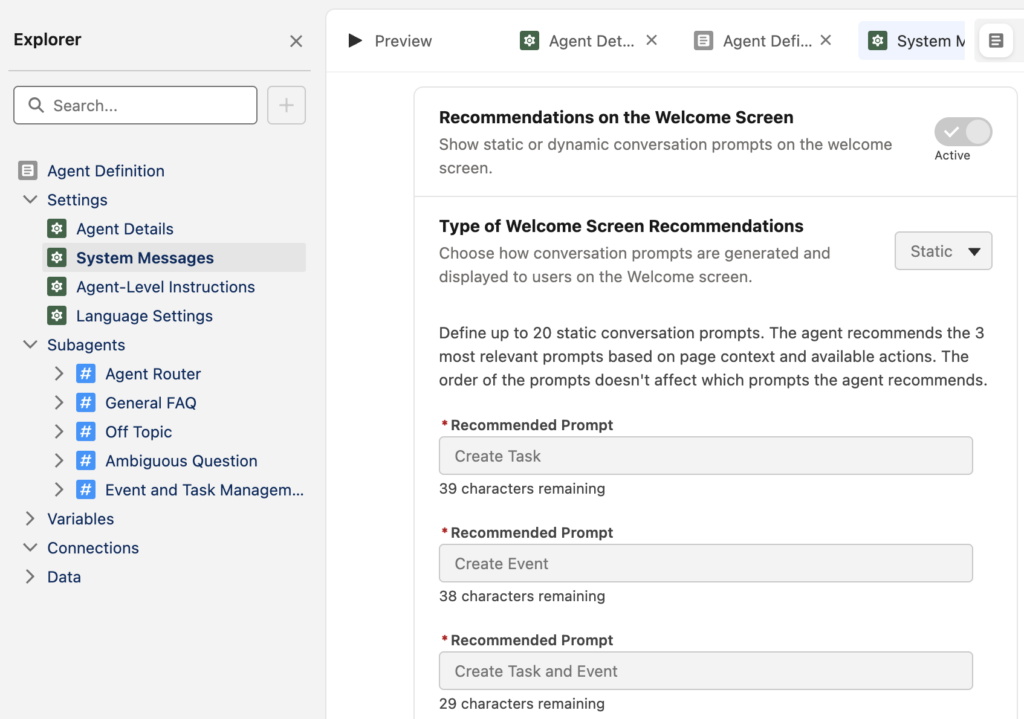
- In the Explorer panel, open Settings and click System Messages.
- In the Conversation Recommendations section, Turn on Recommendations After Agent Responses and Recommendations on the Welcome Screen.
- For the Type of Welcome Screen Recommendations, select Static or Dynamic.
- Static option lets you define custom prompts.
- Dynamic option lets the agent generate prompts based on the current lightning experience page context.
Note:
If you selected Static as the “Type of Welcome Screen Recommendations”, enter a prompt in Recommended Prompt and then click Add Prompt button to add more prompts. You have to add at least 3 and up to 20 prompts, with each prompt containing 5–50 characters.
Best Practices & Recommendations for Agentforce Prompts
As promised, here are some architectural and administrative best practices to consider when setting up your Agentforce Employee Agent scripts:
- Optimize Character Real Estate (5–50 Chars): Because static prompts are limited to 50 characters, use strong action verbs. Instead of “Can you please help me understand this account?”, use “Summarize this Account’s recent activity.”
- Leverage Page Context for Dynamic Prompts: As a Developer or Architect, always encourage the use of Dynamic welcome screens where applicable. Since they adapt based on whether the user is on a List View versus a specific Record Page (like a Case), they drastically reduce the cognitive load on the employee and result in more accurate data retrieval.
- Provide a “Reset” or “Start Over” Static Prompt: If utilizing Static prompts, always include a generalized command in your 3 to 20 allotted slots (e.g., “Help me find a record”) so users have an escape hatch if the other recommendations don’t fit their current need.
- Test After Agent Responses: When you enable Recommendations After Agent Responses, thoroughly test the output in a sandbox. Ensure the LLM isn’t suggesting hallucinated follow-up questions. If the dynamic follow-ups are repeatedly irrelevant, you may need to adjust the underlying instructions or context grounding of your Employee Agent.
- Align Prompts with Persona Tasks: If your Employee Agent is heavily used by Support Analysts, tailor the static welcome prompts strictly to case resolution, SLA checking, and knowledge article drafting.
By taking a few minutes in Agentforce Studio to configure these settings, you transition your AI from a passive chatbot into an active, guided assistant.
https://help.salesforce.com/s/articleView?id=ai.customize_welcome_reco_for_aea.htm&type=5