How to Build a Dynamic Welcome Message in Salesforce Agentforce Using Agent Scripts?
If you are setting up Agentforce Service Agents, you already know how powerful autonomous AI can be for handling customer service. But to truly deliver a premium user experience, personalization is key. A generic “Hello, how can I help you today?” doesn’t cut it anymore.
In this technical guide, we will walk through how to dynamically inject context—like a customer’s tier, recent order status, or intent—directly into your Agentforce Agent Script welcome message using Flow, custom fields, and linked variables.
Technical Overview
To achieve a truly dynamic greeting, we pass context from the incoming channel into the Agentforce reasoning engine before the conversation even begins.
Here is the high-level architecture of how the data flows:
[Incoming Message]
       │
       ▼
[Omni-Channel Flow] ──► (Updates Custom Field on Messaging Session)
       │
       ▼
[Agentforce Agent]  ──► (Reads Linked Variable) ──► [Dynamic Welcome Message]
Step-by-Step Implementation Guide
Step 1: Create a Custom Field on Messaging Session
First, we need a secure place to store the contextual data that our agent will read.
- Navigate to Setup > Object Manager > Messaging Session.
- Create a new custom field (e.g.,
Context_Greeting__cas a Text field) depending on what data you want to display dynamically.
Step 2: Update the Omni-Channel Routing Flow
Before routing the work to your Agentforce Service Agent, populate your new custom field via your routing automation.
- Open your Omni-Channel Flow responsible for routing incoming messaging sessions.
- Add an Update Records Flow element to update the current
MessagingSessionrecord with your dynamic data.
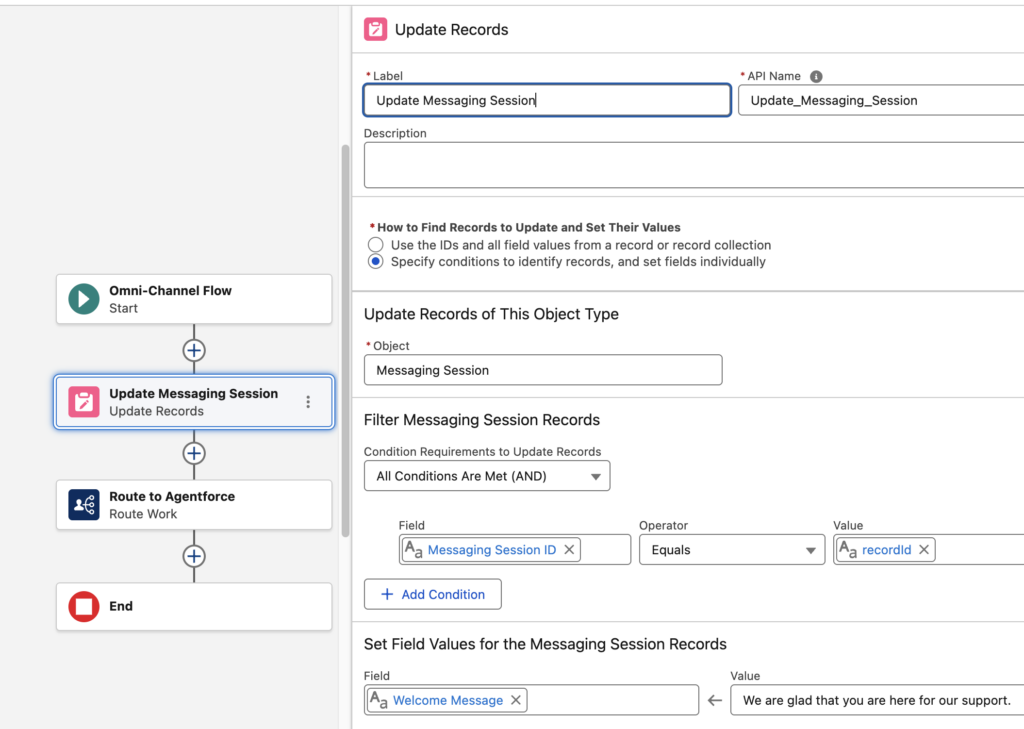
- Critical Routing Rule: Ensure this Update Records element executes before the Route Work Flow element. If it triggers after, Agentforce will instantiate without the context.
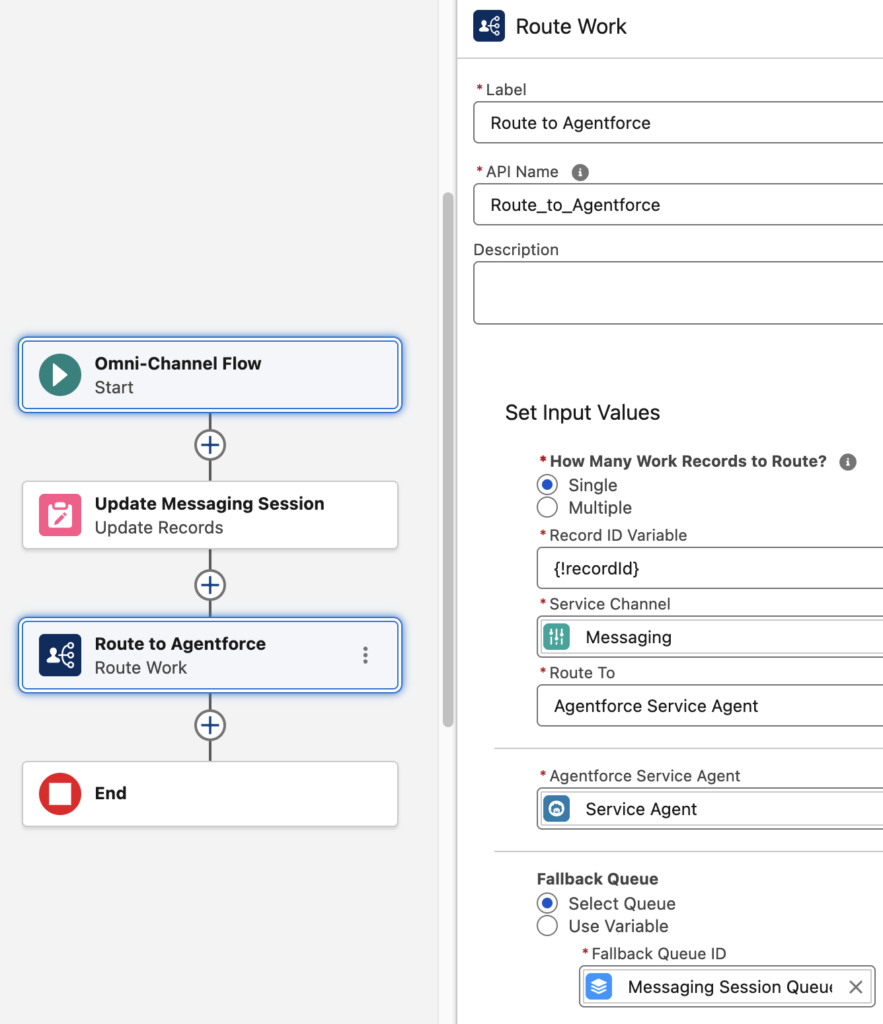
Step 3: Configure the Messaging Channel
Ensure your digital channel is properly hooked up to your intelligent routing engine.
- Go to Setup > Messaging Channels and select your active channel.
- Set the Routing Type to Omni-Flow.
- In the Flow Definition lookup, select the Omni-Channel Flow you modified in Step 2.
Step 4: Grant Field-Level Security (FLS)
Because Agentforce operates under a specialized system context, you must explicitly grant it permission to read your new field.
- Grant Field Level Security (Read Access) for your new custom field to the Einstein Agent User using either their assigned Profile or a dedicated Permission Set. Without this, the agent will see a blank variable.
Step 5: Create a Linked Variable in the Agent Script
Now, we bridge the gap between Salesforce data and the AI’s conversational context.
- Navigate to your Agentforce Service Agent configuration.
- Inside the Agent Script / Actions space, create a new Linked Variable.
- Map this variable directly to the custom field you created on the
MessagingSessionobject in Step 1.
Step 6: Reference the Linked Variable in the Welcome Message
Finally, let’s make the agent speak dynamically.
- Locate your Agent’s Welcome Message configuration.
- Reference your newly created linked variable using merge syntax (e.g.,
{!Linked_Variable_Name}). - Example script: “Hi there! Thanks for reaching out to us today. I see you are calling about your recent order {!Context_Greeting__c}. How can I assist you with this?”
Sample Agent Script:
system:
    instructions: "You are an AI Agent."
    messages:
        welcome: |
            Hi, I'm an AI service assistant.
            {!@variables.WelcomeMessage}
            How can I help you?
        error: "Sorry, it looks like something has gone wrong."

config:
    agent_label: "Service Agent"
    agent_template: "SvcCopilotTmpl__AgentforceServiceAgent"
    developer_name: "Service_Agent"
    description: "Deliver personalized customer interactions with an autonomous AI agent. Agentforce Service Agent intelligently supports your customers with common inquiries and escalates complex issues."
    default_agent_user: "messaging_for_in_app_and_web_agent@00dkj00000bqfbw.com"

variables:
    RoutableId: linked string
        source: @MessagingSession.Id
        description: "This variable may also be referred to as MessagingSession Id"
    WelcomeMessage: linked string
        source: @MessagingSession.Welcome_Message__c
        description: "This variable may also be referred to as MessagingSession Welcome_Message__c"

language:
    additional_locales: "en_GB"
    default_locale: "en_US"
    all_additional_locales: False

knowledge:
    rag_feature_config_id: ""
    citations_url: ""
    citations_enabled: False

start_agent agent_router:
    label: "Agent Router"
    description: "Welcome the user and determine the appropriate subagent based on user input"
    model_config:
        model: "model://sfdc_ai__DefaultEinsteinHyperClassifier"
    reasoning:
        instructions: ->
            | Select the best tool to call based on conversation history and user's intent.
        actions:
            go_to_Escalation: @utils.transition to @subagent.Escalation

connection customer_web_client:
    adaptive_response_allowed: True
    outbound_route_name: "flow://Messaging_for_In_App_and_Web_Route_to_Queue"
    outbound_route_type: "OmniChannelFlow"
    escalation_message: "One moment, I'm transferring our conversation to get you more help."

subagent Escalation:
    label: "Escalation"
    description: "Handles requests from users who want to transfer or escalate their conversation to a live human agent."

    reasoning:
        instructions: ->
            | If a user explicitly asks to transfer to a live agent, escalate the conversation.
              If escalation to a live agent fails for any reason, acknowledge the issue and ask the user whether they would like to log a support case instead.


        # No reasoning actions in this subagent
Architectural Recommendations & Best Practices
When building this out in enterprise environments, keep the following architectural best practices in mind:
- Null-Value Handling: Always design a fallback mechanism in your Agent Script welcome message or your Flow logic in case the custom field fails to populate (e.g., a formula field or Flow decision that defaults to a generic greeting if
Context_Greeting__cis blank). - Idempotency & Race Conditions: Ensuring the Update Records element sits strictly before Route Work is vital. If the session routes to Agentforce before the database commit completes, the AI will pull old or null data.
- Least Privilege FLS: When granting access to the Einstein Agent User, stick to the principle of least privilege. Only grant Read access to the specific context fields required for the script to prevent accidental AI writes to sensitive session data.
- Character Limits: Ensure the data being stamped into the custom field fits within standard text limits (255 characters or text areas) so it doesn’t truncate and break the conversational flow of the agent script.
Need Help Optimizing Your Agentforce Deployments?
Are you looking to scale your Agentforce implementation with custom Lightning Web Components (LWC) or advanced Apex actions? Let’s discuss in the comments below how your team is structuring Agent Scripts for complex enterprise workflows!