In this Blog Post, you will learn how to use a custom Pre-Chat LWC to send the customer’s question as the first message to a Salesforce Agentforce Service Agent.
Pre-Chat as Initial Prompt for Agentforce Service Agent
Quick summary: Customers often type their question into a Pre-Chat form and then have to type it again when the Agentforce Service Agent joins. This post shows how to capture that question with a custom Pre-Chat Lightning Web Component (LWC). It then sends the question automatically as the first message, so the agent can start helping right away.
Who this is for: Salesforce Consultants, Analysts, Admins, Developers, Architects and Software Engineers.
Table of Contents
- Why use Pre-Chat as the initial prompt?
- Solution architecture
- Step 1: Set up the Agentforce Service Agent
- Step 2: Set up Enhanced Chat and Pre-Chat
- Step 3: Configure the Messaging Channel and Omni-Channel
- Step 4: Build the custom Pre-Chat LWC
- Step 5: Add event listeners on your website
- Testing steps
- Best practices and recommendations
- Conclusion
Why use Pre-Chat as the initial prompt?
A Pre-Chat form is a good place to capture the customer’s intent before the conversation starts. By default, though, the answer is stored on the Messaging Session and is not sent to the agent as a message. The customer still has to repeat the question.
If you send the Pre-Chat value as the first message, you get:
- A faster start, because the agent responds to the real question straight away.
- A better customer experience, since nobody types the same thing twice.
- More accurate subagent routing, because the agent has context from the first turn.
Solution architecture
The flow has four parts:
- The customer fills in the custom Pre-Chat LWC, which runs inside the Embedded Messaging iframe.
- The LWC uses
window.postMessageto send the value to the host website. - The website stores the value in
sessionStorage, with an in-memory fallback. - When
onEmbeddedMessagingFirstBotMessageSentfires, the website callsutilAPI.sendTextMessage()to send the stored value as the customer’s first message.
Step 1: Set up the Agentforce Service Agent
Create and activate your Agentforce Service Agent, and configure the subagents (topics) and actions it needs to answer customer questions. The quality of the agent’s reply to the initial prompt depends on these instructions.
Step 2: Set up Enhanced Chat and Pre-Chat
- Create an Embedded Service Deployment of type Enhanced Chat.
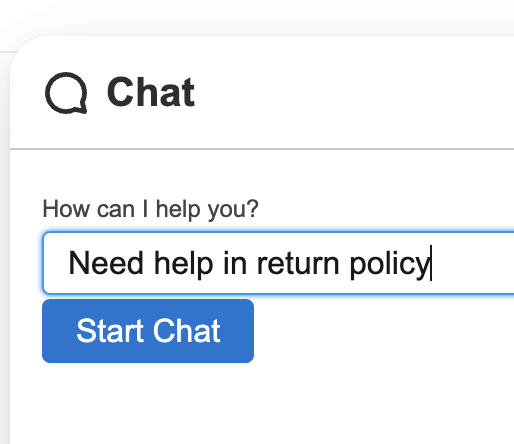
- Enable Pre-Chat and add a field to capture the customer’s initial question. In this example the field label is How can I help you?.
Step 3: Configure the Messaging Channel and Omni-Channel
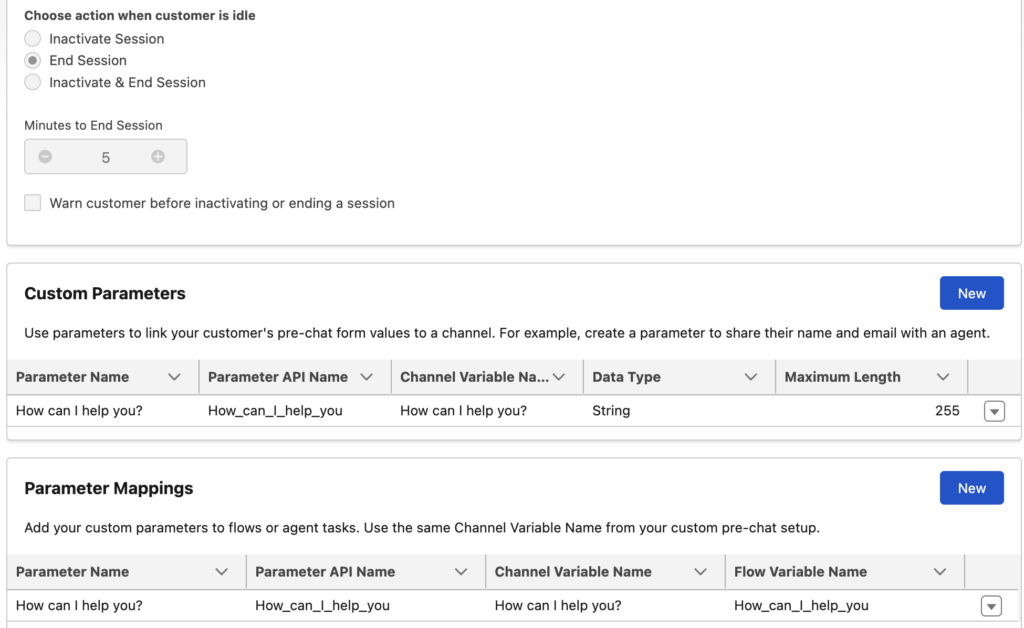
- In the Messaging Channel, create a Custom Parameter for the Pre-Chat value.
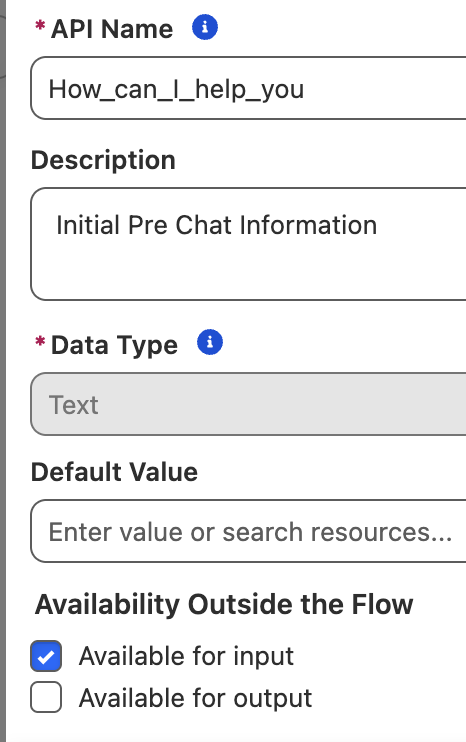
- Configure Parameter Mapping to map the custom parameter to a Flow Input Variable.
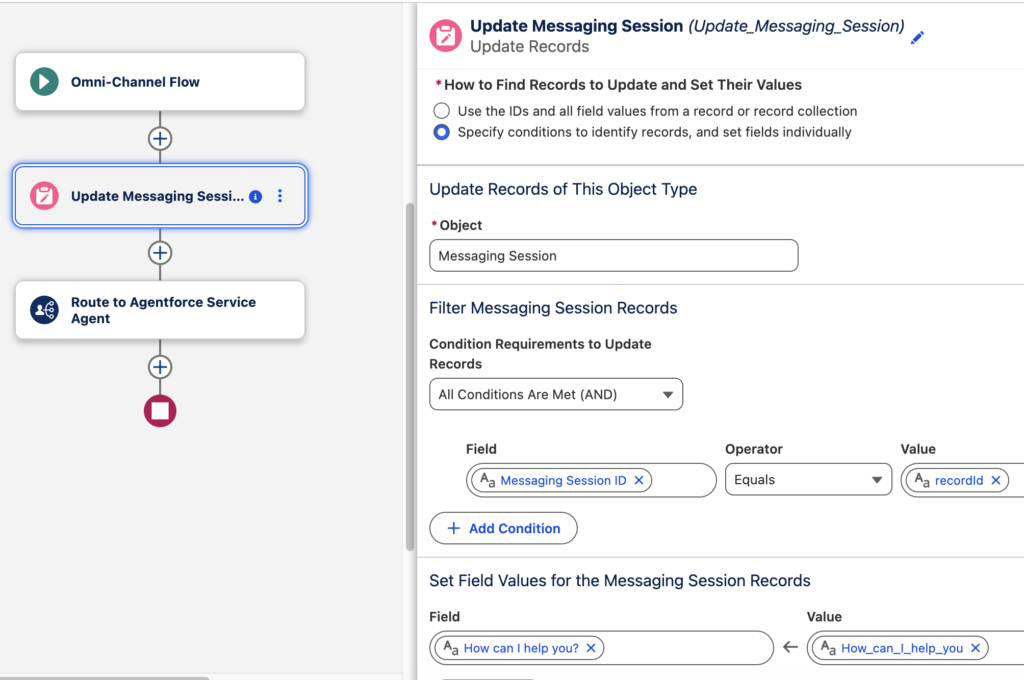
- Use an Omni-Channel Flow to route the Messaging Session to the Agentforce Service Agent. The same flow can update the Messaging Session with the mapped value.
Update the Messaging Session using Update Records Flow element.
Step 4: Build the custom Pre-Chat LWC
Create a custom LWC that renders the Pre-Chat form and posts the values to the website that hosts the Embedded Service Deployment code snippet.
HTML
<template>
    <div class="slds-p-around_medium">
        <template for:each={fields} for:item="field">
            <lightning-input
                key={field.name}
                data-name={field.name}
                onchange={handleChange}
                required={field.required}
                label={field.labels.display}
            ></lightning-input>
        </template>
        <lightning-button
            variant="brand"
            label="Start Chat"
            onclick={handleSubmit}
            class="slds-m-top_medium"
        ></lightning-button>
    </div>
</template>
JavaScript
import { LightningElement, api } from "lwc";

export default class MessagingPreChat extends LightningElement {
    @api configuration = {};
    values = {};

    get fields() {
        const forms = this.configuration.forms || [];
        const form = forms.find(f => f.formType === "PreChat") || {};
        return JSON.parse(JSON.stringify(form.formFields || []))
            .sort((a, b) => a.order - b.order);
    }

    handleChange(event) {
        this.values[event.target.dataset.name] = event.target.value;
    }

    handleSubmit() {
        const valid = [...this.template.querySelectorAll("lightning-input")]
            .every(i => i.reportValidity());
        if (!valid) return;

        const value = {};
        this.fields.forEach(f => { value[f.name] = String(this.values[f.name] ?? ""); });

        try {
            window.parent.postMessage(
                { source: "prechat", value },
                "https://infallibletechie.github.io"   // target origin = your host page
            );
        } catch (e) {
            console.warn("postMessage failed", e);
        }

        this.dispatchEvent(new CustomEvent("prechatsubmit", { detail: { value } }));
    }
}
js-meta.xml
<?xml version="1.0" encoding="UTF-8"?>
<LightningComponentBundle xmlns="http://soap.sforce.com/2006/04/metadata">
    <apiVersion>65.0</apiVersion>
    <isExposed>true</isExposed>
    <targets>
        <target>lightningSnapin__MessagingPreChat</target>
    </targets>
</LightningComponentBundle>
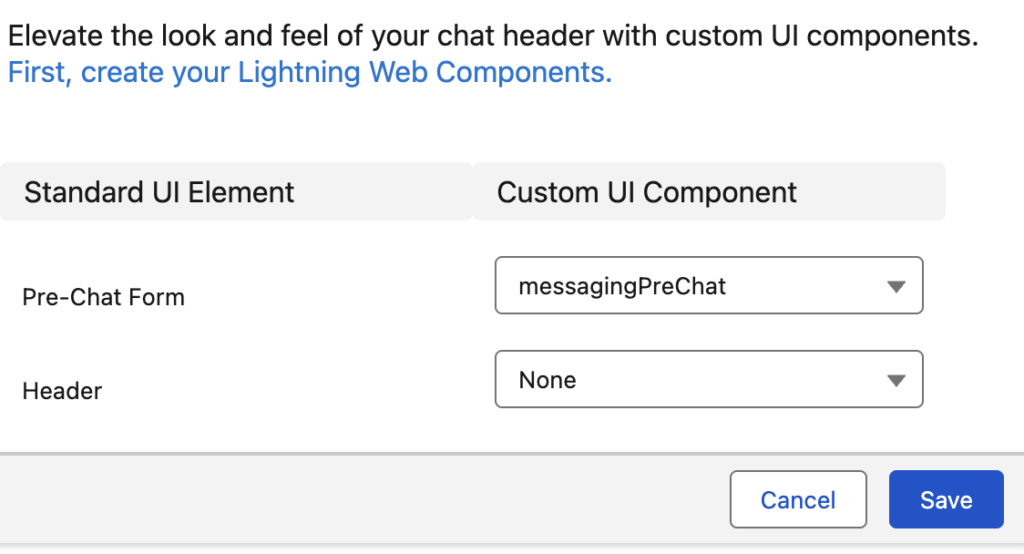
The lightningSnapin__MessagingPreChat target makes the component selectable as the custom Pre-Chat form in the Embedded Service Deployment.
Step 5: Add event listeners on your website
On the host website, use window.addEventListener() for three jobs:
- Listen for the Pre-Chat message from the LWC and store it in session storage.
- Listen for
onEmbeddedMessagingFirstBotMessageSentand send the stored value as the first message. - Clear the stored value when the conversation or the chat window is closed.
<html>
	<script type='text/javascript'>
		function initEmbeddedMessaging() {
			try {
				embeddedservice_bootstrap.settings.language = 'en_US'; // For example, enter 'en' or 'en-US'

				const CHAT_ORIGIN = "https://ne1795216183744.my.site.com";
				const KEY = "chatPrechatPrompt";

				// 1. Store when the LWC posts it
				window.addEventListener("message", (e) => {
				    if (e.origin !== CHAT_ORIGIN || e.data?.source !== "prechat") return;
				    const prompt = e.data.value["How can I help you?"];
				    try {
						sessionStorage.setItem(KEY, prompt);
					} catch (err) {
						console.warn(JSON.stringify(err));
					}
				    window.pendingPrompt = prompt;   // in-memory fallback
				});

				// 2. Use it when the first bot message is sent
				window.addEventListener("onEmbeddedMessagingFirstBotMessageSent", (e) => {
				    let prompt = window.pendingPrompt;
				    try {
						prompt = prompt ?? sessionStorage.getItem(KEY);
					} catch (err) {
						console.warn(JSON.stringify(err));
					}

				    console.log("First bot message sent. Prompt was:", prompt);
				    console.log("Event detail:", e.detail);   // SSE payload
				    embeddedservice_bootstrap.utilAPI.sendTextMessage(prompt)
				      .then(() => {
				        console.log('Message Sent');
				      }).catch(() => {
				        console.log('Message not Sent');
				      }).finally(() => {
				        console.log('Message Sent Finally');
				      });
				});

				// 3. Clean up when the conversation or window ends
				["onEmbeddedMessagingConversationClosed", "onEmbeddedMessagingWindowClosed"].forEach(name =>
				    window.addEventListener(name, () => {
				        window.pendingPrompt = null;
				        try {
							sessionStorage.removeItem(KEY);
						} catch (err) {
							console.warn(JSON.stringify(err));
						}
				    })
				);

				embeddedservice_bootstrap.init(
					'00Dg700000Rtlht',
					'Chat',
					'https://ne1795216183744.my.site.com/ESWChat1795635463722',
					{
						scrt2URL: 'https://ne1795216183744.my.salesforce-scrt.com'
					}
				);
			} catch (err) {
				console.error('Error loading Embedded Messaging: ', err);
			}
		};
	</script>
	<script type='text/javascript' src='https://ne1795216183744.my.site.com/ESWChat1795635463722/assets/js/bootstrap.min.js' onload='initEmbeddedMessaging()'></script>
</html>
How it works
- The
messagelistener checks the sender’s origin and thesourceflag before it trusts the payload. sessionStoragekeeps the value for the browser tab session.window.pendingPromptis an in-memory fallback in case storage is blocked.utilAPI.sendTextMessage()returns a promise, so you can handle success and failure.- Cleanup on
onEmbeddedMessagingConversationClosedandonEmbeddedMessagingWindowClosedstops an old question from being reused in a new conversation.
Testing steps
- Initiate the chat conversation from your website.
- Fill in How can I help you? and start the chat.
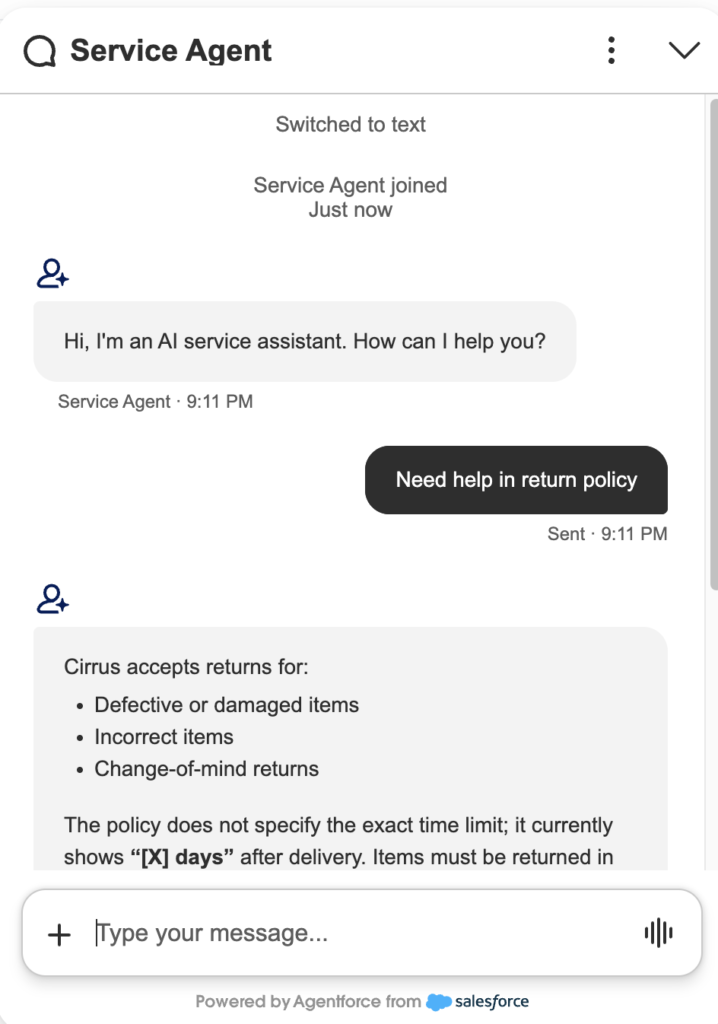
- The Agentforce Service Agent joins the conversation. The value the customer entered is sent as the first message, and the agent replies based on that value and the subagents you configured.
Best practices and recommendations
Security
- Keep strict origin checks on both sides. The snippet already validates
e.originon the website and uses a specifictargetOrigininpostMessage. Never use"*"as the target origin. - Treat the Pre-Chat text as untrusted input. The customer’s text goes straight to the agent. Add guardrails and instructions in your agent’s subagents to handle prompt-injection attempts.
- Limit sensitive data. Tell customers not to enter personal or payment details in the free-text field. Also consider a maximum length on the field.
- Avoid logging customer text in production. The snippet logs the prompt and event detail with
console.log. Remove or gate these logs before go-live.
Reliability
- Handle an empty or missing prompt. If both the in-memory value and session storage are empty,
sendTextMessageis called withnullorundefined. Add a guard such asif (!prompt) return;. - Clear the value after sending.
onEmbeddedMessagingFirstBotMessageSentcould fire again in some flows. Clearing the stored value right after a successful send avoids duplicate first messages. - Improve error logging.
JSON.stringify(err)on anErrorobject usually returns{}. Logerr.messageor the error object itself. The.catch()handler also ignores the actual error, and its.finally()message says “Message Sent Finally” even after a failure. - Avoid relying on a hardcoded field label. The website reads
e.data.value["How can I help you?"]. If an admin renames the label, the integration breaks silently. Consider a stable field key or a shared constant. - Prefer a namespaced variable over
window.pendingPrompt. A global property can collide with other scripts on the page.
Maintainability
- Externalize configuration. Move the org ID, URLs and origins into environment-specific configuration instead of hardcoding them, so sandbox and production deployments don’t get mixed up.
- Keep the LWC
fieldsgetter lightweight. It deep-clones and sorts on every access. Compute it once, for example inconnectedCallbackor a memoized property, if the form grows. - Check the API version regularly. The component uses
apiVersion65.0. Keep it aligned with your org’s release. - Test with browsers that block storage. Private modes or strict privacy settings can make
sessionStoragethrow. The in-memory fallback covers this, but a page reload during chat would lose the value. - Plan for accessibility. Verify labels, required-field messaging and keyboard focus order in the custom form.
Conclusion
A custom Pre-Chat LWC, a few window.addEventListener() handlers and sendTextMessage() let you turn the customer’s first answer into the opening message of an Agentforce conversation. The agent gets context immediately and the customer doesn’t repeat themselves.
References
https://developer.salesforce.com/docs/service/messaging-web/guide/send-message.html
https://developer.salesforce.com/docs/service/messaging-web/guide/event-listeners.html