In this Blog Post, you will learn how to turn on Agent Actions so users can create and update Salesforce CRM records from the Agentforce Coworker search bar, with user confirmation.
Agentforce Coworker lets your users work with Salesforce data from a single search bar. With Agent Actions turned on, they can also create and update Salesforce CRM records from that same place. Agentforce Coworker proposes each change, and the user confirms it before the record is saved.
This guide covers who benefits, what you need to turn on, and the exact steps in Setup. It is written for admins, consultants, analysts, developers, architects, and software engineers.
What Are Agent Actions in Agentforce Coworker?
When you turn on Agentforce Coworker, Salesforce CRM is added as a source. Agent Actions is the setting that lets users create and update Salesforce CRM records from the Agentforce Coworker search bar, rather than only searching them.
Key behaviors to know:
- Salesforce CRM is a source by default. It is added when you turn on Agentforce Coworker.
- Agent Actions is a separate, per-source setting. You enable it for the Salesforce CRM source.
- Changes are proposed, not applied automatically. The user confirms each change before the record is saved.
- Users work in Ask mode. Once enabled, users with Agentforce Coworker access can create and update records from Ask mode.
Why Enable Agent Actions?
Enabling Agent Actions lets users stay in one place instead of switching between a search experience and record pages. Because every proposed change needs user confirmation, the user keeps control over what gets saved.
Here is how it applies to each role:
- Admins: Control access with a single toggle on the Salesforce CRM source.
- Consultants and architects: Include record creation and updates in your Agentforce Coworker rollout design.
- Analysts and developers: Understand where record changes originate when you review data or troubleshoot.
Prerequisites
- Agentforce Coworker is turned on in your org.
- You can access Setup.
- Users who will create and update records have Agentforce Coworker access.
How to Turn On Agent Actions for the Salesforce CRM Source
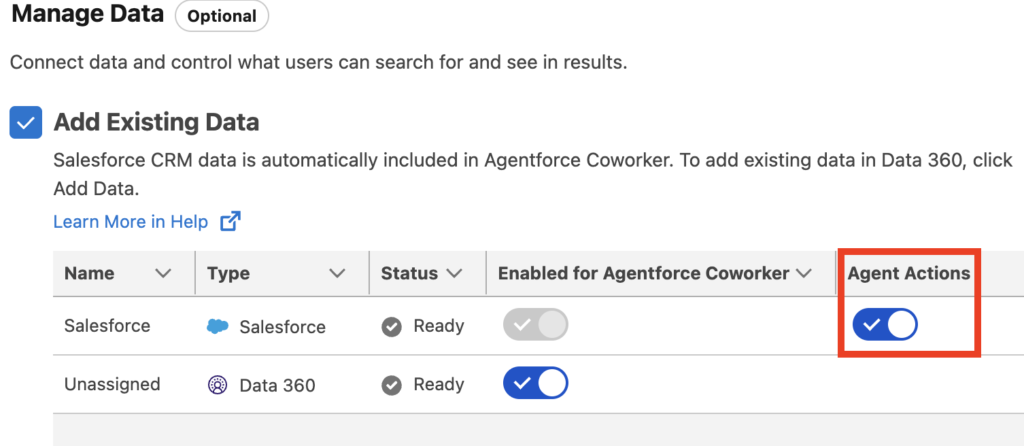
Follow these steps to turn on Agent Actions for the Salesforce CRM source in the Add Existing Data table.
- From Setup, in the Quick Find box, enter Agentforce Coworker.
- Select Get Started with Agentforce Coworker.
- In the Add Existing Data table, find the Salesforce CRM source.
- In the Agent Actions column, turn on Agent Actions.
To remove this access, turn off Agent Actions in the same column.
What Users Can Do After You Turn It On
After Agent Actions is turned on, users with Agentforce Coworker access can create and update Salesforce CRM records from Ask mode. The flow looks like this:
- The user asks Agentforce Coworker to create or update a Salesforce CRM record from the search bar.
- Agentforce Coworker proposes the change.
- The user reviews and confirms it.
- The record is saved after confirmation.
Frequently Asked Questions
How do I let users create records in Agentforce Coworker?
Turn on Agent Actions for the Salesforce CRM source in the Add Existing Data table. Users with Agentforce Coworker access can then create records from Ask mode.
Does Agentforce Coworker save changes automatically?
No. It proposes each change, and the user confirms it before the record is saved.
Where do I find the Agent Actions setting?
In Setup, search for Agentforce Coworker, select Get Started with Agentforce Coworker, and find the Salesforce CRM source in the Add Existing Data table.
How do I remove the ability to create and update records?
Turn off Agent Actions in the Agent Actions column for the Salesforce CRM source.
Which mode do users use to create and update records?
Ask mode.
Conclusion
Turning on Agent Actions for the Salesforce CRM source takes a few clicks in Setup, and it extends Agentforce Coworker from search to record creation and updates. The confirmation step keeps users in control of every change. To roll it back, turn the same setting off.