Introduction
In modern customer service ecosystems, the handoff between human agents and AI agents isn’t a one-way street. While we often talk about AI-to-human escalation, optimizing the reverse path—human agent to AI agent (Agentforce)—is critical for maximizing efficiency, handling after-hours transitions, or offloading repetitive post-incident workflows.
If you are using Enhanced Chat (Messaging Channels), Salesforce allows you to achieve this seamlessly via Omni-Channel routing. This technical guide will walk you through configuring an Omni-Channel Flow to enable human agents to transfer ongoing messaging sessions back to an Agentforce Agent.
The Architecture: How It Works
To allow a human agent to hand off a conversation to Agentforce, we leverage three core components of the Salesforce Service Cloud ecosystem:
- Omni-Channel Flow: The routing engine that defines where the session goes.
- Presence Configuration: The security and access layer that defines which transfer flows are visible to the agent console.
- The Omni-Channel Widget: The UI component where the service rep executes the transfer.
Step-by-Step Implementation Guide
Step 1: Create the Omni-Channel Flow
The backbone of this integration is an Omni-Channel routing flow that targets your digital AI agent.
- Navigate to Setup > Flows and create a new Omni-Channel Flow.
- Add a Route Work flow element to your canvas.
- Configure the Route Work element to route the incoming
Messaging Sessionrecord. - Set the routing destination specifically to your designated Agentforce Agent.
Step 2: Update the Presence Configuration
Once your flow is activated, you must grant your human agents the permission to see and trigger this routing logic.
- In Setup, search for Presence Configurations.
- Select the configuration associated with your target Service Representatives.
- Locate the Selected Transfer Flows section.
- Add your newly created Omni-Channel Flow to the list and save your changes.
Step 3: The Agent Experience (The Handoff)
With the backend configured, the front-end execution is straightforward for your service reps:
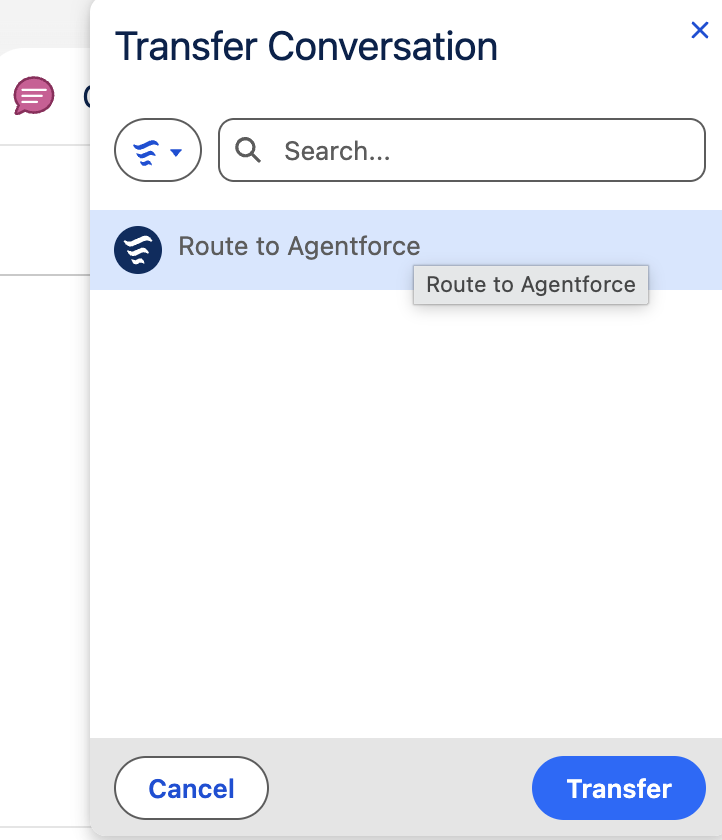
- During an active Enhanced Chat / Messaging Session, the human agent clicks the Transfer Icon within the Omni-Channel utility or chat control panel.
- They select the specific Transfer Flow from the dropdown menu.
- The session is instantly re-routed to the Agentforce Agent, allowing the AI to take over the conversation seamlessly.
Key Takeaways for Admins & Architects
By utilizing Omni-Channel Flows embedded directly within Presence Configurations, you remove the friction of siloed AI experiences. You turn Agentforce into a collaborative teammate that human agents can pull into a conversation just as easily as they would escalate to a tier-2 specialist.