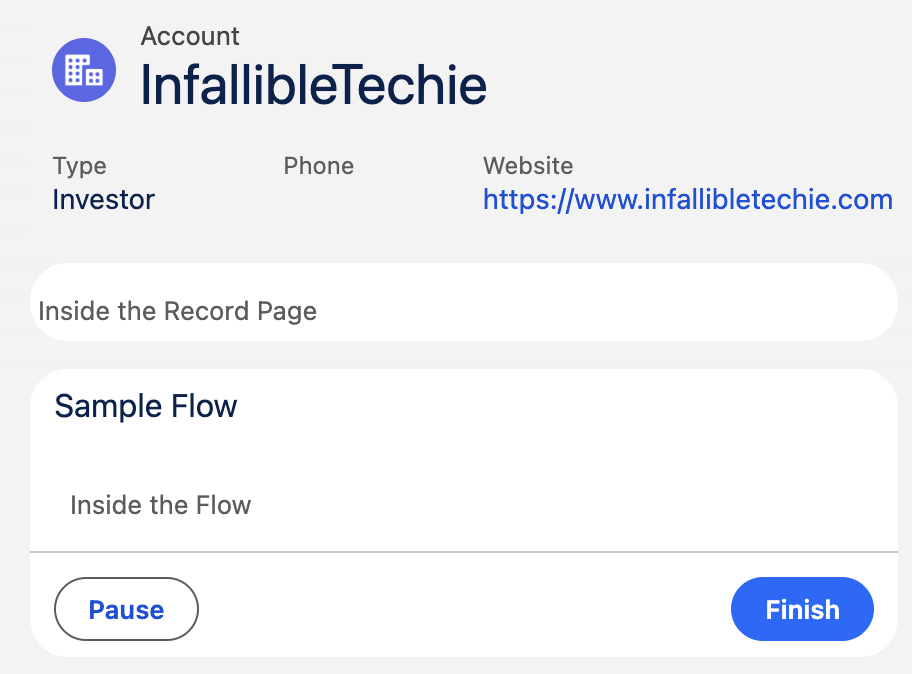
Building reusable Lightning Web Components (LWCs) is a core tenant of modern Salesforce development. As Developers and Architects, we constantly look for ways to build a single component that can be used across multiple contexts—such as Lightning Record Pages, App Pages, and Screen Flows.
However, a common challenge arises when your component needs to behave differently depending on where it lives. For example, you might want to hide certain buttons or display different text when the LWC is executing inside a Flow.
So, how do you programmatically detect if your LWC is loaded inside a Screen Flow? The secret lies in the Flow-specific @api availableActions property. Let’s dive into the solution.
The Solution: Leveraging availableActions
When an LWC is placed inside a Screen Flow, the Flow engine automatically passes several context variables down to the component. One of the most reliable variables to check is availableActions.
The availableActions property is an array of strings that tells the component which navigation actions are currently available in the Flow execution (such as NEXT, BACK, PAUSE, or FINISH). If this property is populated, you can confidently determine that your LWC is running inside a Flow.
Let’s look at the implementation.
1. Configuration: js-meta.xml
First, ensure your component is exposed to both Record Pages and Screen Flows by updating your target configuration.
<?xml version="1.0" encoding="UTF-8"?>
<LightningComponentBundle xmlns="http://soap.sforce.com/2006/04/metadata">
    <apiVersion>66.0</apiVersion>

    <isExposed>true</isExposed>

    <targets>
        <target>lightning__RecordPage</target>
        <target>lightning__FlowScreen</target>
    </targets>
</LightningComponentBundle>
2. The Logic: JavaScript Controller
In your JavaScript file, you simply need to expose the availableActions property using the @api decorator. Then, you can create a getter method to evaluate if the array exists and contains items.
import { LightningElement, api } from 'lwc';

export default class SampleComponent extends LightningElement {
    @api availableActions=[];

    get isFlow() {
        return !!this.availableActions && this.availableActions.length > 0;
    }
}
3. The UI: HTML Template
Finally, you can use conditional rendering in your HTML template to display contextual UIs based on the isFlow getter we defined in the JavaScript file.
<template>
    <lightning-card>
        <template if:true={isFlow}>
            Inside the Flow
        </template>
        <template if:false={isFlow}>
            Inside the Record Page
        </template>
    </lightning-card>
</template>
Conclusion
By simply exposing the availableActions array, you can make your Lightning Web Components context-aware. This technique empowers Admins and Developers to build highly dynamic, reusable components that adapt perfectly whether they are dropped onto a Lightning Record Page or embedded deep within a complex Screen Flow.