As AI ecosystems expand, the ability to seamlessly integrate external tools into your workflows is no longer just a “nice-to-have”—it’s an architectural necessity. Model Context Protocol (MCP) for Agentforce brings enhanced agent interoperability to your Salesforce environment. By seamlessly registering and using third-party tools in Agentforce, your agents can do more for your customers and employees across various disparate systems.
If you are a Salesforce Admin, Architect, or Developer tasked with linking an external MCP server to your Agentforce Agents, this guide covers the exact requirements, setup steps, and authentication protocols you need to get everything communicating smoothly.
Step-by-Step Guide: Connecting MCP Servers to Salesforce Agentforce
Technical Requirements
Before diving into Salesforce Setup, ensure your environment and external server meet the following prerequisites:
- A Functional MCP Server: Your server must be reachable via a network connection and utilize the Streamable HTTP transport protocol. If your server requires an authentication protocol, it must support OAuth 2.0 authentication.
- An Agentforce-Enabled Org: Your Salesforce org must have Agentforce provisioned and enabled.
- An Existing Agent: You must have an Agentforce Service or Agentforce Employee agent already created within the legacy Agentforce Builder.
Step-by-Step Guide to Connecting Your MCP Server
Follow these three steps to successfully register your MCP Server and expose its tools to your Agentforce Agent.
Step 1: Update the Agentforce Planner Type
First, you need to ensure your agent is utilizing the correct planner type to orchestrate multi-agent tasks and utilize MCP tools.
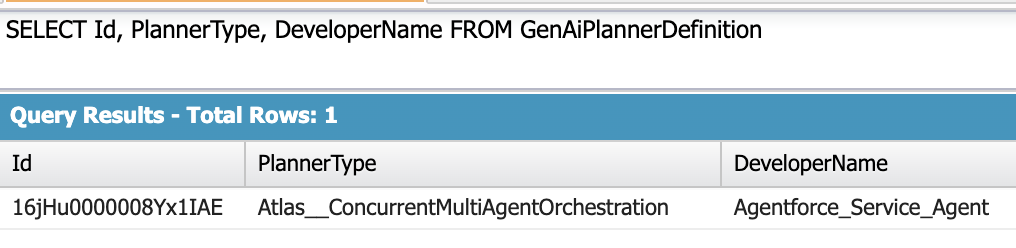
Run the following SOQL query to locate your agent’s planner definition:
SELECT Id, PlannerType, DeveloperName
FROM GenAiPlannerDefinition
Locate the record for the Agentforce Agent that will be using the MCP Tool. You must update the PlannerType field for this specific agent to Atlas__ConcurrentMultiAgentOrchestration. (See the Best Practices section at the end of this post for tips on executing this update).
you can also make use of the following SFDX command to update the PlannerType.
sf data update record -v PlannerType=Atlas__ConcurrentMultiAgentOrchestration -s GenAiPlannerDefinition -i <GenAiPlannerDefinition 16j* ID>Update the placeholder <GenAiPlannerDefinition 16j* ID> with the Agentforce Agent(GenAiPlannerDefinition) ID.
Step 2: Register the MCP Server
Next, you need to tell Salesforce where your MCP server lives and what tools it offers.
- Navigate to Salesforce Setup.
- Search for and select Agentforce Registry.
- Click New and follow the guided wizard.
- Enter your MCP Server details, configure your connection, and select the specific MCP Tools you want to register for use within Salesforce.
Step 3: Add the MCP Tool Action to Your Agent
Once the server is registered, you need to grant your specific agent access to the tools.
- Open your Agentforce Agent configuration.
- Create a new Topic or select an existing Topic where this tool logically belongs.
- Navigate to This Topic’s Actions.
- Click Add from Asset Library and select your newly registered MCP Tool to assign it to the agent.
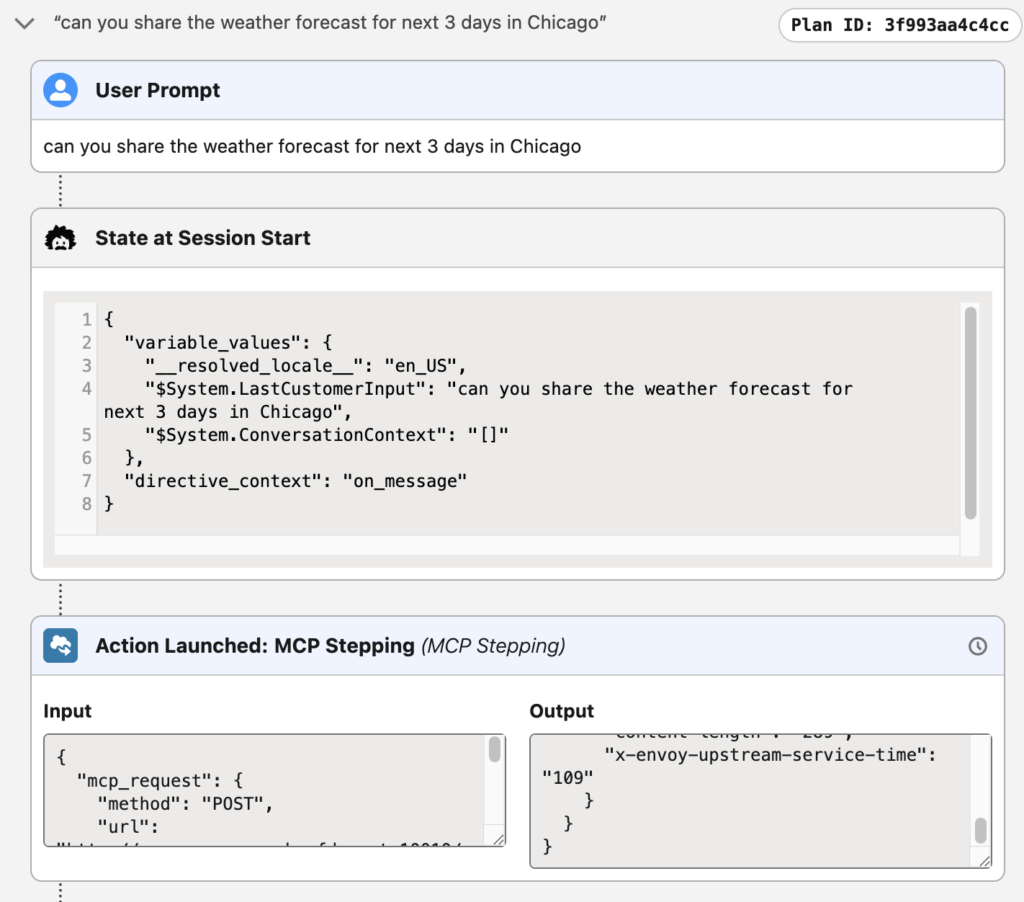
Test it from the Agentforce builder. Check the Action Launched. To debug or troubleshoot check “mcp_request” in the input and “mcp_response” in the output.
Note on Security and Authentication
When you create the MCP connection through the Setup Wizard, Salesforce does a lot of the heavy lifting behind the scenes to ensure secure authentication with your server.
Salesforce automatically generates:
- A Named Credential
- An External Credential
- A Permission Set (typically named “ServerName – Permission Set”)
Crucial Step: This Permission Set allows Salesforce to authenticate with your server. It is automatically assigned to the user who creates the connection, allowing you to manage the server. However, for your agent to actually use your MCP server tools in practice, you must assign this Permission Set to the appropriate users or to the agent’s user record.
Best Practices & Recommendations for the SOQL Update
Regarding the SOQL snippet provided in Step 1, here are a few technical best practices to keep in mind when modifying the GenAiPlannerDefinition:
- Tooling API: Because
GenAiPlannerDefinitionis a metadata/setup object, you may not be able to perform standard DML operations (likeupdate) on it directly via anonymous Apex. You will likely need to use the Salesforce CLI (SFDX/sf), the Tooling API, or Salesforce Workbench to query and update thePlannerTypefield. - Verify by DeveloperName: Always cross-reference the
DeveloperNamereturned in your query to ensure you are updating the exact Agentforce Agent you intend to modify. Updating the wrong planner definition could break the orchestration of other live agents. - Sandbox First: Always perform this update and test the integration in a Sandbox environment before executing the SOQL update and registry changes in your Production org.