How to Auto-Change Salesforce Omni-Channel Status Based on Workload
Managing agent capacity effectively is one of the most critical aspects of running a smooth Salesforce Service Cloud operation. When support agents reach their maximum workload, continuing to route cases or chats to them can lead to missed SLAs and frustrated customers.
While agents can manually update their presence status to “Busy” or “At Capacity,” relying on human intervention leaves room for error. Fortunately, as a Salesforce Developer or Architect, you can automate this process.
In this tutorial, we will explore how to auto-change an Omni-Channel status based on workload using a Lightning Aura Component, the lightning:omniToolkitAPI, and the omniChannelWorkloadChanged event.
The Solution: Automating Presence Status
To accomplish this automation, we need a hidden utility component added to the Salesforce Console. This component listens for workload changes in real-time. When an agent accepts or closes a work item, the component evaluates their current workload against their maximum configured capacity. If they hit their limit, it automatically updates their status.
Here is the complete Lightning Aura Component code to achieve this.
1. The Aura Component (.cmp)
First, we define the component structure. We include the omniToolkitAPI to interact with Omni-Channel and set up a handler to listen for workload changes.
<aura:component implements="flexipage:availableForAllPageTypes" access="global">
    <lightning:omniToolkitAPI aura:id="omniToolkit" />
    <aura:handler event="lightning:omniChannelWorkloadChanged" action="{!c.onWorkloadChanged}"/>
</aura:component>
2. The Controller (.js)
The controller intercepts the omniChannelWorkloadChanged event. It extracts the necessary data points—specifically the newWorkload and configuredCapacity—and houses the core logic to determine if the agent can handle more work.
({
    /**
     * Handles the event when the agent's workload changes.
     * Evaluates the new workload against the configured capacity
     * and updates the agent's presence status accordingly.
     */
    onWorkloadChanged: function(component, event, helper) {
        let currentStatusId = "";
        let busyStatusId = "0N5Ho0000008TvB";
        let availableStatusId = "0N5Ho0000008T1p";
        let omniAPI = component.find("omniToolkit");
        console.log("Workload changed");

        // Extract workload and capacity details from the event parameters
        const { newWorkload, previousWorkload, configuredCapacity } = event.getParams();
        console.log('newWorkload: ' + newWorkload);
        console.log('previousWorkload: ' + previousWorkload);
        console.log('configuredCapacity: ' + configuredCapacity);

        // Get the current status ID
        omniAPI.getServicePresenceStatusId()
        .then(function(result) {
            console.log('Current status Id is: ' + result.statusId);
            currentStatusId = result.statusId;

            // Check if the agent has reached or exceeded their capacity limit
            if (newWorkload >= configuredCapacity && currentStatusId !== busyStatusId) {
                console.log('Agent cannot accept more work');
                helper.setAgentPresenceStatus(busyStatusId, omniAPI);
            } else if (newWorkload < configuredCapacity && currentStatusId !== availableStatusId) {
                console.log('Agent can accept more work');
                helper.setAgentPresenceStatus(availableStatusId, omniAPI);
            }
        }).catch(function(error) {
            console.log(error);
        });
    }
})
3. The Helper (.js)
The helper encapsulates the actual API call to update the Omni-Channel presence status. It isolates the setServicePresenceStatus method, making the code cleaner and easier to debug.
({
    /**
     * Updates the Omni-Channel service presence status for the agent.
     * @param {String} statusId - The 15 or 18 character Salesforce ID of the presence status.
     * @param {Object} omniAPI - The Omni-Channel Toolkit API object.
     */
    setAgentPresenceStatus: function(statusId, omniAPI) {
        // Call Omni-Channel Toolkit API to set the new presence status
        omniAPI.setServicePresenceStatus({ statusId: statusId })
        .then(function(result) {
            console.log('New status Id is: ' + result.statusId);
        })
        .catch(function(error) {
            // Log any errors encountered during the API call
            console.log(error);
        });
    }
})
How It Works
- Event Trigger: The
lightning:omniChannelWorkloadChangedevent automatically fires whenever an agent’s active workload fluctuates (e.g., when work item is assigned or close an existing work item). - Evaluation: The controller instantly compares the
newWorkloadinteger against theconfiguredCapacityinteger. - Status Update: If the workload equals or exceeds the capacity limit, the helper script fires, utilizing
setServicePresenceStatusto push the agent into a “Busy” or “At Capacity” state (represented by the ID0N5Ho0000008TvB). If capacity opens up, it switches them back to an “Available” state (ID0N5Ho0000008T1p). - In order to avoid setting the existing Presence Status
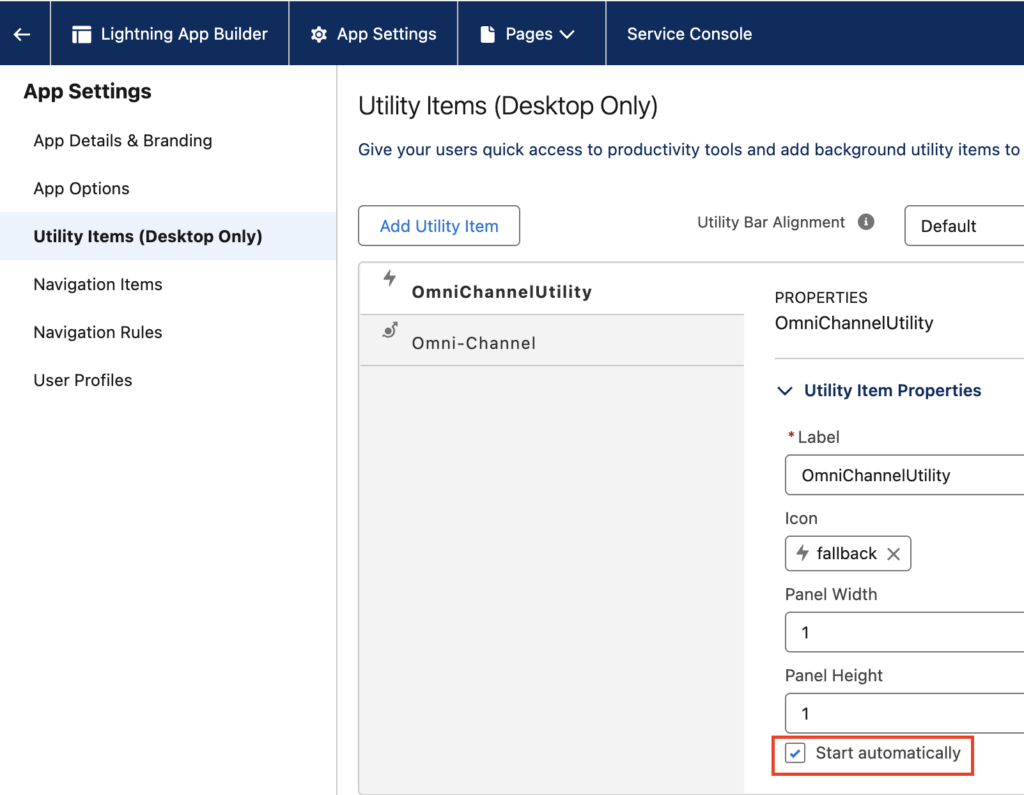
getServicePresenceStatusIdis used to find the current Presence Status Id of the Agent. - Add the Lightning Aura Component to the Console app. Make sure “Start automatically” is enabled. I have set the Panel Width and Height to 1 since there is nothing to display to the users.
Best Practices & Recommendations for Production
While the code snippet provided perfectly illustrates the core functionality, you should consider implementing the following best practices before deploying this to a production environment:
- Avoid Hardcoding Record IDs: The controller currently uses hardcoded 15-character Salesforce IDs (e.g.,
"0N5Ho0000008TvB") for the Presence Statuses. Since Record IDs differ between Sandboxes and Production environments, this will break upon deployment. Recommendation: Store these IDs in Custom Labels or Custom Metadata Types and retrieve them dynamically in your component. - Remove or Wrap
console.logStatements: Leavingconsole.logstatements active in production can clutter the browser console and theoretically leak structural information. Recommendation: Remove them entirely, or wrap them in a custom logging framework that only outputs when a specific “Debug Mode” custom setting is enabled. - Enhance Error Handling: Currently, if the
setServicePresenceStatusAPI call fails, the error is only logged to the console. The agent will remain unaware that their status failed to update. Recommendation: Implement alightning:notificationsLibrarytoast message in the.catch()block to alert the agent visually if a system error prevents their status from updating. - Consider Future-Proofing with LWC: Salesforce is actively prioritizing Lightning Web Components (LWC). While this Aura component works perfectly, if you are building this from scratch today, you might want to explore the LWC
lightning/omniToolkitAPImodule to ensure long-term architectural alignment with Salesforce’s roadmap.
By automating your Omni-Channel statuses, you protect your agents from burnout and ensure your routing logic functions exactly as designed.