Introduction
Setting up Salesforce Agentforce to automate email responses is a powerful way to streamline customer service operations. However, while configuring the email settings for your Agentforce Service Agent, you might encounter a specific validation error that prevents you from saving the setup.
If you are a Salesforce Administrator, Developer, or Architect configuring Agentforce Service for Email, you might see a red error banner blocking your progress. This brief guide will walk you through the exact exception and the quick resolution required to get your agent up and running.
The Exception
When attempting to save your new email configuration (defining the Email Template, Agentforce Service Agent, Signature, and Legal Disclosure), the system throws the following error:
Exception:
Before you save this email configuration, add the email connection in the Agent Builder.
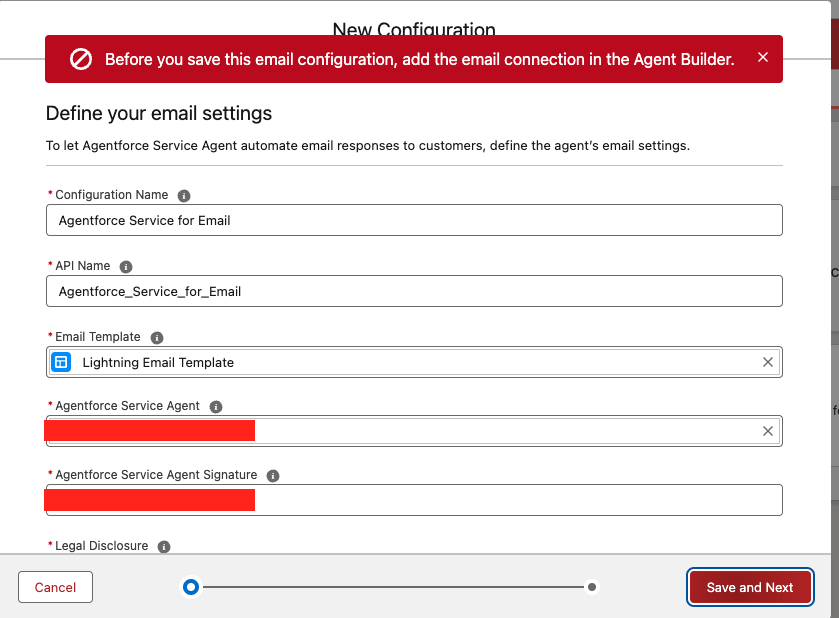
Why does this happen? Salesforce requires the underlying Agentforce Agent to explicitly have the “Service Email” connection enabled before you can bind a specific email configuration to it. If the agent itself doesn’t know it’s allowed to handle emails, the configuration page will reject the save attempt.
The Resolution
To bypass this error, you need to step away from the Email Configuration page temporarily and update the Agent’s connection settings directly in the Builder.
Resolution:
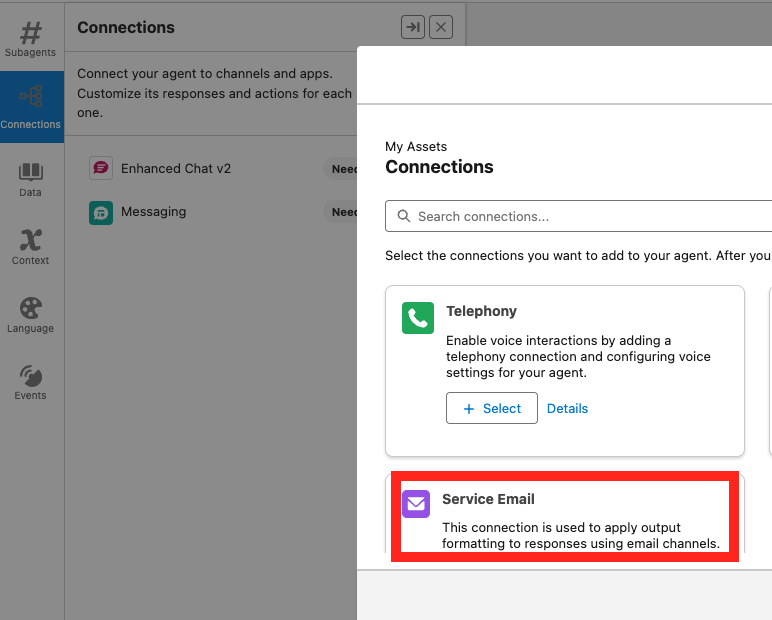
In the Agentforce Agent, add Service Email configuration to resolve it.
Step-by-Step Fix:
- Navigate to the Agent Builder: Open the specific Agentforce Agent you were trying to link to your email configuration.
- Access Connections: On the left-hand navigation menu within the Agent Builder, click on the Connections tab.
- Add a New Connection: Click the option to add a new connection. This will open the My Assets – Connections modal.
- Select Service Email: In the search or list of available connections, locate Service Email.
- Note: The description will state “This connection is used to apply output formatting to responses using email channels.”
- Save and Return: Select the Service Email connection and save your Agent.
- Retry the Configuration: Return to your original “New Configuration” screen for the Agentforce Service for Email. You will now be able to click Save and Next successfully.
Recommendations & Best Practices
To ensure a smooth deployment of Agentforce for Service on Email, keep these best practices in mind:
- Configure Connections First: Always define your agent’s inbound and outbound channels (like Service Email, Telephony, or Messaging) in the Agent Builder before attempting to build the routing or specific channel configurations in Setup.
- Verify Email Templates: Ensure the Lightning Email Template you select in the configuration does not contain conflicting merge fields that the Agentforce bot cannot resolve.
- Test in a Sandbox: Always connect and test your Agentforce email automation in a partial or full sandbox environment before deploying to production. This allows you to verify the output formatting applied by the Service Email connection.
- Review Legal Disclosures: When automating emails, ensure your “Legal Disclosure” field accurately reflects that an AI or automated agent is responding, which is a compliance requirement in many regions.