Upgrading to an Enhanced SMS channel is a critical move for Salesforce professionals looking to leverage rich messaging features, improved routing, and better scalability. However, technical hurdles—like consent mismatch errors—can stall the process.
This blog post is designed to guide technical personas through a seamless transition while resolving common API-level exceptions.
Mastering the Shift: How to Upgrade Salesforce Standard to Enhanced SMS Channels?
Moving from Standard to Enhanced SMS isn’t just a feature toggle; it’s an architecture upgrade. Enhanced channels offer features like MMS support, bidirectional messaging components, and robust Omni-Channel routing. If you are an Admin or Developer or Architect planning this migration, here is the technical roadmap and a fix for a common “Double Opt-In” exception.
Step-by-Step Upgrade Process
The upgrade process is managed directly within the Salesforce Setup UI. Follow these steps to initiate the migration:
1. Access Messaging Settings
Navigate to Setup and search for Messaging Settings in the Quick Find box. Here, you will see your existing list of Standard SMS channels.
2. Initiate the Upgrade
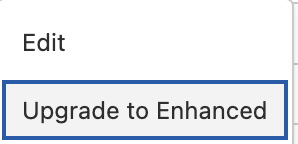
Locate the channel you wish to migrate. Click the Action Menu (dropdown arrow) next to the channel name and select Upgrade to Enhanced.
3. Complete Pre-Upgrade Tasks
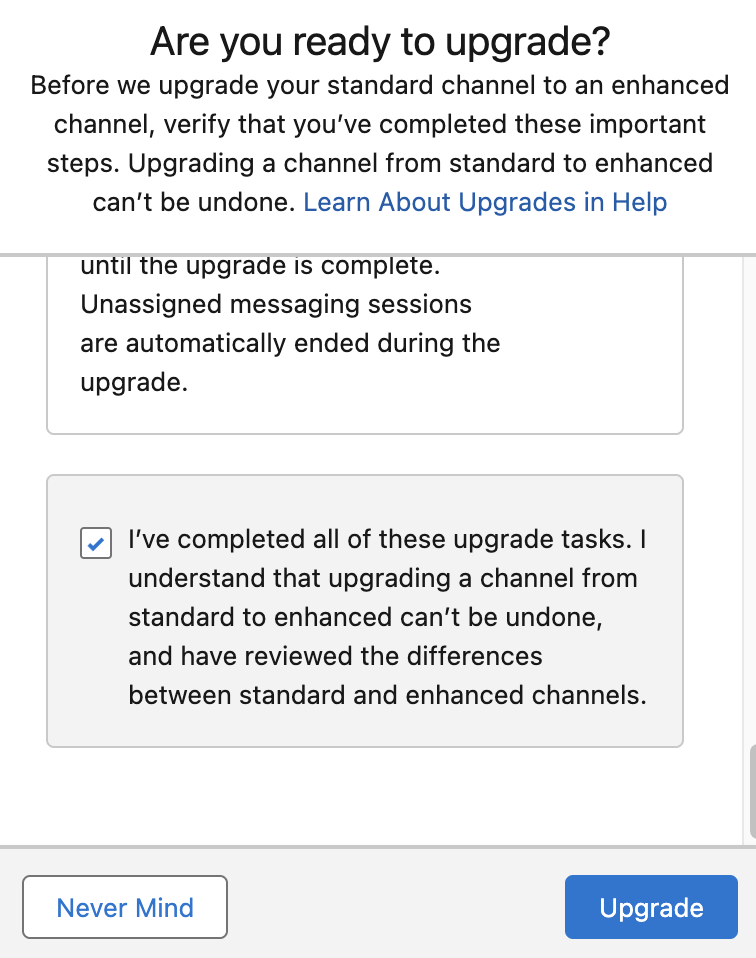
Salesforce will present a checklist of tasks. These often include:
- Reviewing routing configurations.
- Confirming number ownership.
- Verifying consent models.
Important: Ensure every task in the list is marked as complete, or the Upgrade button will remain inactive.
Troubleshooting the “Double Opt-In” Exception
During the upgrade, many developers and architects encounter a specific validation error related to how consent was handled in the Standard channel versus the Enhanced requirements.
The Problem
You may see the following exception during the “Complete Tasks” phase:
Exception: Field Require Double Opt-In? cannot be set for Messaging Channel of type Text with Consent Type ImplicitOptIn.
This happens because Implicit Opt-In (where consent is assumed by the user initiating contact) is logically incompatible with a Double Opt-In requirement (which requires a secondary confirmation) in the Salesforce metadata layer.
The Resolution
To fix this, you must manually update the Messaging Channel metadata to align the consent fields. Use the following SOQL query in the Developer Console or VS Code Query Editor to identify the record:
SELECT Id, ConsentType, IsRequireDoubleOptIn, DoubleOptInPrompt
FROM MessagingChannel
WHERE DeveloperName = 'TestSMSChannel'
Action Plan:
- Disable the
IsRequireDoubleOptInboolean (set it tofalse). - Clear any string values stored in the
DoubleOptInPromptfield. - Once the record is updated, return to the Setup wizard and retry the upgrade.
Best Practices & Recommendations
Based on the technical requirements of the Messaging API, keep these recommendations in mind when managing your MessagingChannel records:
- Consent Alignment: Always ensure your
ConsentTypematches your business logic. If you are usingImplicitOptIn, ensureIsRequireDoubleOptInis alwaysfalseto avoid deployment or upgrade errors. - Sandbox Testing: Since Enhanced SMS involves changing the routing behavior, always run the SOQL fix and the upgrade process in a Full Copy Sandbox before touching Production.
- Backup Metadata: Before clearing the
DoubleOptInPromptfield, back up the existing text. If you decide to move to an Explicit Opt-In model later, you will want that messaging consistent with your brand voice. - Developer Name Accuracy: When using the SOQL fix, ensure you are filtering by
DeveloperName(the API name) and not the UI Label to ensure you are modifying the correct channel.