Learn how to build native React apps on the Agentforce 360 Platform using the Salesforce Multi-Framework (Beta). A complete guide for developers and architects.
Salesforce Multi-Framework Guide: Building Native React Apps on Salesforce Platform
For years, integrating React into Salesforce meant relying on external hosting, complex canvas integrations, or clunky iframes. With the introduction of the Salesforce Multi-Framework (Beta), that paradigm has fundamentally shifted.
You can now build AI agents and apps using React running natively on the Salesforce Platform. There is no external hosting required, and zero iframes are involved. Your React code automatically inherits native Salesforce authentication, robust security, and enterprise backend scale right out of the box.
Whether you are a Salesforce Architect planning a new frontend strategy, a Developer writing the code, or an Admin configuring the environments, this guide walks you step-by-step through setting up and utilizing Agentforce Vibes to generate native React components.
Part 1: Salesforce Org Setup & Prerequisites
Before writing any code, you need to enable the correct beta features and dependencies in your Salesforce org. Follow these steps carefully:
- Log in to your environment and navigate to Salesforce Setup.
- Search for React Development with Agentforce Vibes and Salesforce Multi-Framework (Beta) in the left sidebar Quick Find box.
- Click the Enable button to turn on Salesforce Multi-Framework.
- Search for Agentforce Vibes Extension in Setup and ensure the Disable Extension toggle is turned off.
- Navigate to PLATFORM TOOLS -> Feature Settings -> Digital Experiences -> Settings, and enable Enable Digital Experiences.
- Go to Digital Experiences -> All Sites and click New. You do not need to choose a site template; simply click Back to Setup in the wizard. This crucial step ensures all required backend dependencies are created.
- Search for MCP Servers in Setup. Activate both the salesforce-api-context and metadata-experts Salesforce MCP Servers.
Part 2: Local Development & VS Code Configuration
Once the org is prepared, configure your local development environment using Visual Studio Code.
- Create a new Salesforce Project in VS Code.
- Authorize your project against the Salesforce org you just configured.
- Click the Agentforce Vibes icon in the VS Code Activity Bar.
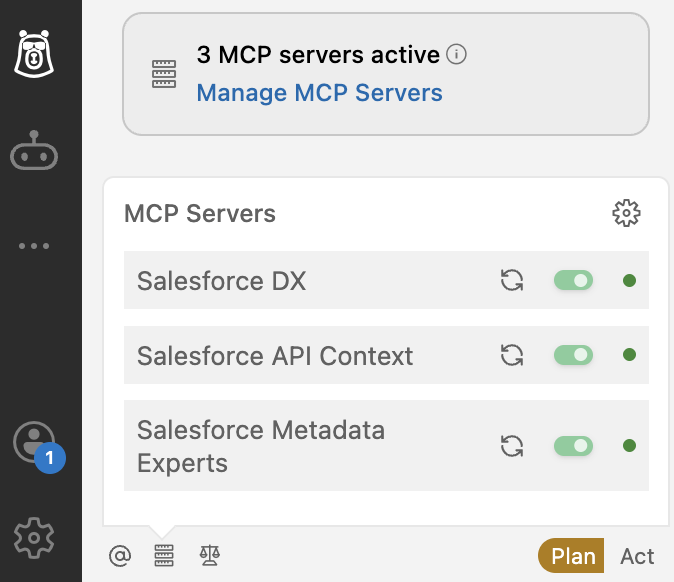
- Click the Manage MCP Servers icon. Confirm that the Salesforce DX MCP server, Salesforce Metadata Experts MCP server, and Salesforce API Context MCP server are all enabled and connected to your org.
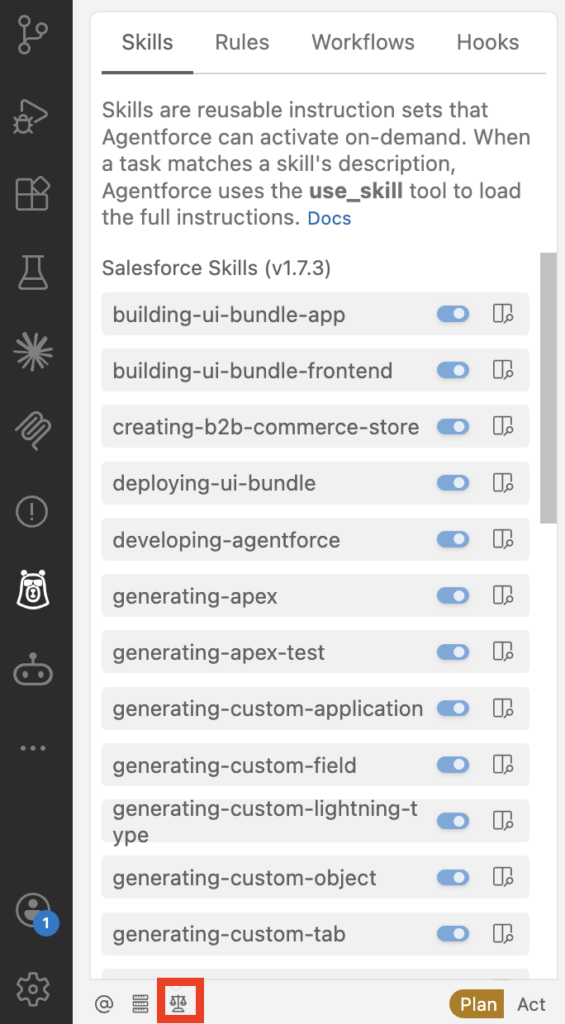
- Click the Manage Rules, Workflows, Hooks & Skills icon and confirm that all Salesforce skills and rules are enabled.
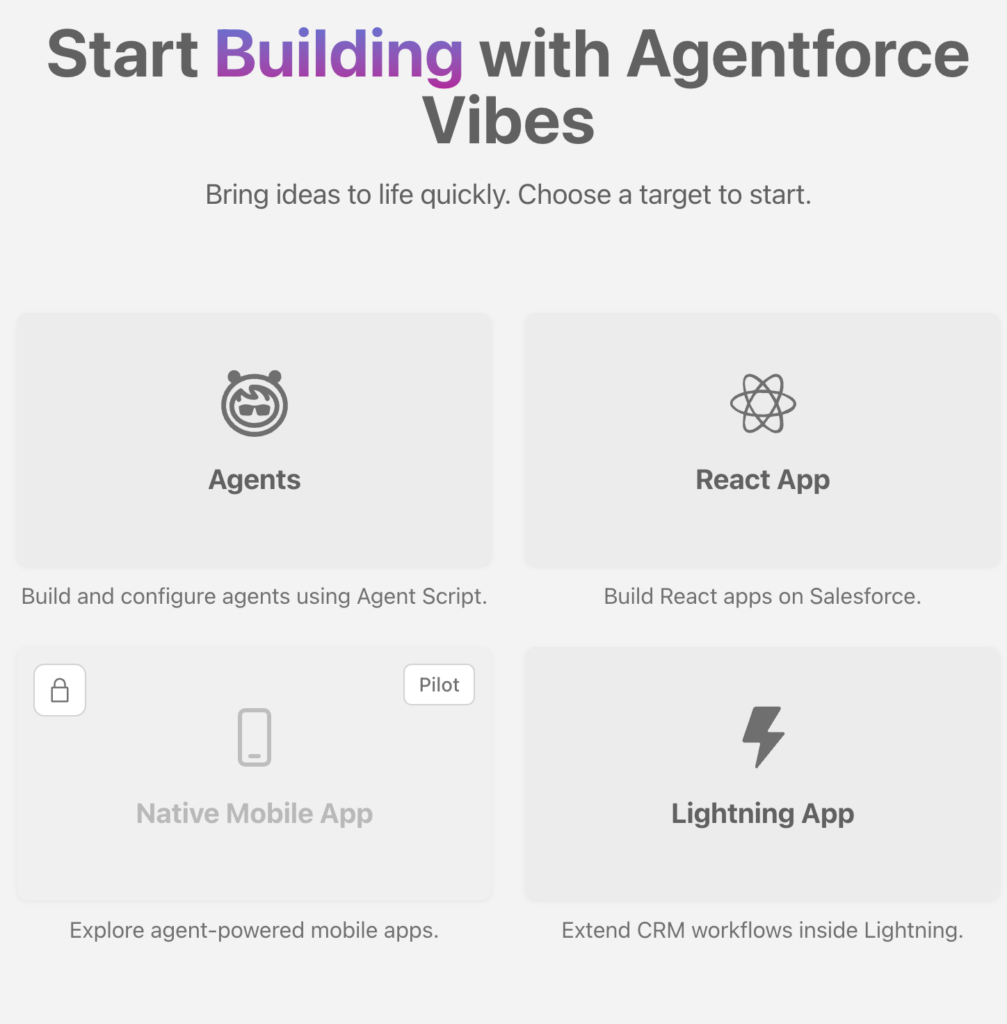
- Open your VS Code command palette and run:
Agentforce: Show Welcome Page. - Click on React App.
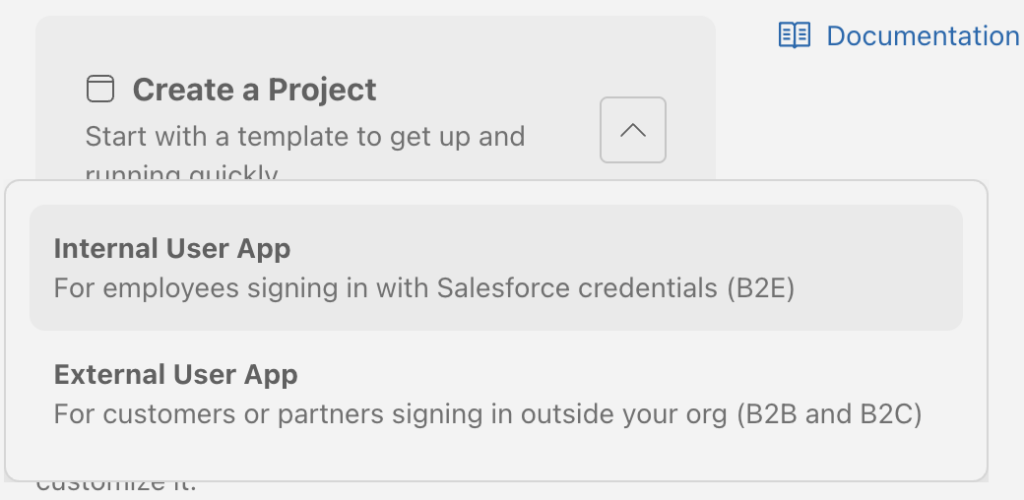
- Click Create Project.
- Select either Internal or External based on your app’s use case.
- Enter a Name for your application and click the Create Project button.
- Review the generated
README.mdfile and make any necessary changes to align with your company’s coding standards. - Because this is a newly initialized project, it requires authorization. Click No Default Org Set in the Activity bar and select the user/org you previously authorized.
- Click the Agentforce Vibes icon again. Double-check that your MCP Servers, Skills, and Workflows are still enabled. (New project initializations sometimes temporarily disable these connections).
Part 3: App Development via Vibe Coding
Now comes the fun part: using AI to accelerate your native React development.
- Open the Agentforce Vibes Chat and ensure it is set to Plan mode.
- Enter your app development requirements.
For this tutorial, we will use a detailed prompt specifically engineered for a case management view.
Code Snippet: Sample “Vibe Coding” Prompt
Role & Goal: Act as an expert frontend developer specializing in the Salesforce ecosystem. Build a single-page customer-facing React app called 'InfallibleCaseManagement'.

Tech Stack: Use React for all HTML structure, styling, and icons. Make sure the Salesforce Lightning Web Runtime can use it.

Core Functionality: > - Create a single, intentionally simple view where users can input a Case Number to check its status.

Strictly do not build any other functionality (no navigation, no admin dashboards).

Data & Logic (Mocking the Backend):

Create a dummy asynchronous function to simulate an Apex controller call with a 1-second delay.

Include a hardcoded dictionary/object of mock cases to test against (e.g., Case '123' -> 'New', Case '456' -> 'Closed', Case '789' -> 'Working').

The "Vibe" (UI/UX Design):

Layout: The app must look exactly like the native Salesforce Lightning Experience. Center the content.

States & Edge Cases to Handle:

Idle: Clean input field and a "Check Status" button. Disable the button if the input is empty.

Loading: Show a spinner while the mock Apex call runs.

Success: Display the Case ID and its status clearly. Use standard SLDS badges (slds-badge) colored appropriately based on the status (e.g., green for 'Closed').

Error: If the case number isn't in the mock data, show an scoped notification or toast error with a polite "Case not found" message.- Agentforce Vibes will guide you through its project recommendations based on the prompt. It will respond with its interpretation, flag any potential gaps, and ask for clarification if necessary.
- Once you are satisfied with the AI’s architectural recommendation, switch the chat to Act mode. Agentforce Vibes will now generate the metadata and React code.
Part 4: Preview and Deployment
With your code generated, it is time to test and push it to your org.
- Open your VS Code command palette and execute the
SFDX: Open in Live Previewcommand to view your running React App locally. - To deploy the application directly to your Salesforce org, return to the Agentforce Vibes chat.
- Type
Deploy all metadata to my orginto the chat interface. Agentforce Vibes will handle the packaging and deployment natively.
Reference Articles:
https://developer.salesforce.com/docs/platform/code-builder/guide/reactdev-overview.html
https://www.salesforce.com/platform/multi-framework