For Salesforce Administrators, Developers, and Architects, optimizing the service console experience is a top priority. Support agents spend a significant amount of time crafting routine emails. By leveraging Salesforce’s Einstein Generative AI and Prompt Builder, technical teams can automate this process, ensuring consistency, reducing handle times, and improving customer satisfaction.
This guide walks you through configuring and using pre-made email templates to draft service emails natively within Salesforce.
Why Automate Service Emails with Einstein?
Instead of relying on static quick text or manual typing, you can ask Einstein generative AI to draft some of your most common types of emails, such as introductions and follow-up nudges.
Because it is deeply integrated into the Salesforce ecosystem, Einstein pulls in the customer’s name and information from a case to customize your email, creating a personalized output every time. This reduces the cognitive load on agents while maintaining a highly tailored customer experience.
Step 1: Configure Prerequisites and Permissions
Before your service agents can leverage Generative AI for drafting emails, Salesforce Administrators need to provision the correct user permissions.
- Assign the Permission Set: Assign “Einstein Service Email Assistant User” Permission Set to the User who wants to use “Draft with AI”.
- Verify Access: Ensure the assigned users have access to the Service Console and the specific Case objects they will be drafting emails from.
Step 2: Accessing Pre-Made Templates in Prompt Builder
Salesforce provides out-of-the-box templates so you don’t have to build your generative prompts from scratch. Here is how you can locate and manage them:
- Navigate to Setup in your Salesforce org.
- In the Quick Find box, type and select Prompt Builder.
- Salesforce provides “Pre-made Email Templates”. Go to Prompt Builder and look for Prompt Templates with type “Service Email”.
- Review the standard templates provided by Salesforce to understand how the grounding data (Case fields, Contact details) is mapped to the Large Language Model (LLM).
Step 3: Customizing for Your Business Logic
While the out-of-the-box templates cover standard use cases like “Follow Up” or “Provide Update,” your organization might have unique workflows or compliance requirements.
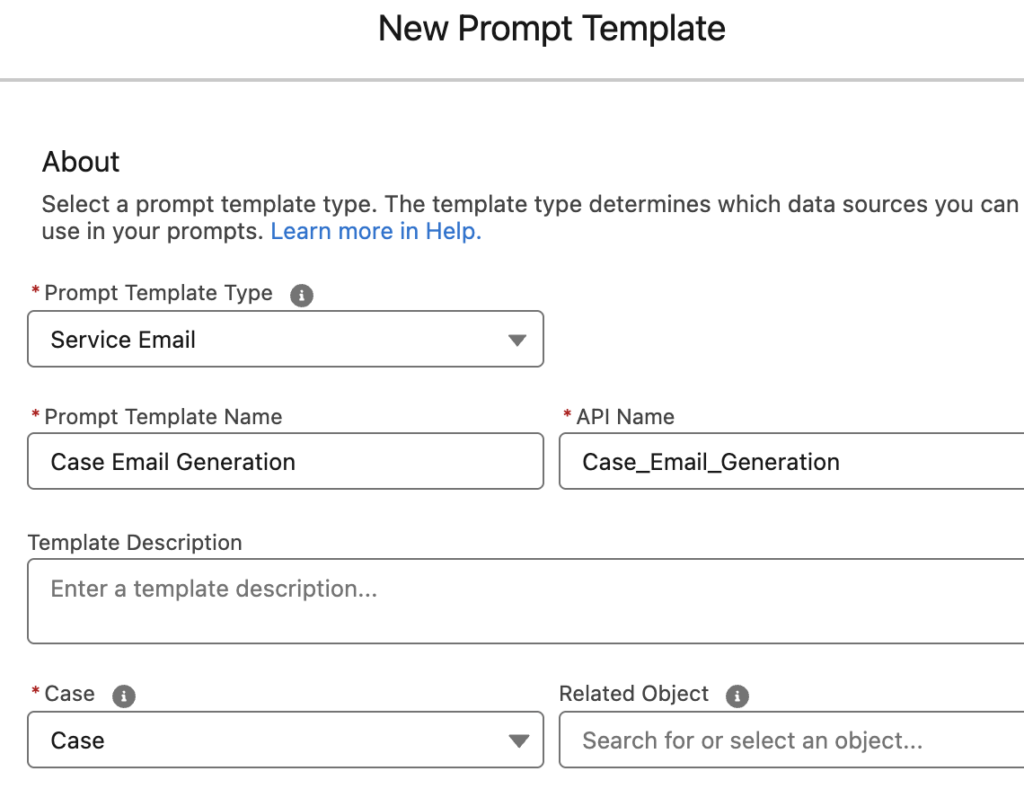
If the standard templates don’t fully meet your needs, you can also create a Prompt Template with type “Service Email”.
To create a custom template:
- Click New Prompt Template in the Prompt Builder workspace.
- Select Service Email as the template type.
- Define the grounding data using merge fields (e.g.,
{!Case.Subject},{!Contact.FirstName}). - Test the prompt output directly within the builder against real Salesforce records to ensure the LLM generates accurate and safe responses.
Sample Prompt Template
Role: You are an expert, empathetic, and highly helpful Customer Support Representative.

Task: Write a reply email to a customer regarding their recent support case. Your goal is to provide a clear, accurate, and professional resolution based only on the provided Knowledge Article data.

Customer Context:
Customer Name: {!$Input:Case.Contact.FirstName} {!$Input:Case.Contact.LastName}
Case Subject: {!$Input:Case.Subject}
Customer's Original Message: {!$Input:Case.Description}

Grounding Knowledge (Data Library): Use the following validated information from our Knowledge Base to answer the customer's question: {!$EinsteinSearch:KA_Knowledge_Base_for_Agentforce_1Cx_FBwc337d798.results}

Instructions & Constraints:
Analyze and Match: Read the "Customer's Original Message" and find the exact solution within the "Grounding Knowledge".
No Hallucinations: You must ONLY use the facts provided in the "Grounding Knowledge". If the provided knowledge does not contain the answer, politely inform the customer that you are escalating the issue to a specialist and do not attempt to guess the answer.
Tone and Style: * Start with a warm, empathetic greeting, acknowledging their specific issue.
Keep the tone professional, friendly, and concise.
Avoid overly technical jargon unless it is explicitly explained in the Knowledge Article.
Formatting: * Use bullet points or numbered lists if providing step-by-step instructions.
Ensure the email is easy to skim.
Closing: End the email by asking if they need further assistance and provide a polite sign-off.
Recommendations & Best Practices
To get the most out of Einstein Service Emails, consider the following technical best practices:
- Audit Grounding Data: The quality of the AI-generated email relies heavily on the data it pulls from. Ensure your Case and Contact records have strict validation rules so the LLM is fed accurate, high-quality information.
- Implement Human-in-the-Loop (HITL): Train your users that “Draft with AI” is a starting point. Agents should always review, edit, and verify the AI-generated draft before hitting send to prevent hallucinations or tone mismatches.
- Version Control Your Prompts: Treat custom Prompt Templates like code. Document changes to your prompts in your Sandbox, test them thoroughly, and deploy them to Production using standard Salesforce change management protocols.
- Monitor Usage and Feedback: Utilize Salesforce reporting to track how often agents are using the “Draft with AI” feature and gather feedback on the template outputs to iteratively improve your Prompt Builder configurations.