How to Fix: VS Code Not Showing Salesforce Retrieve and Deploy in Output
If you are building or managing solutions on the Salesforce platform, your Integrated Development Environment (IDE) is your control center. Whether you use Visual Studio Code (VS Code) or Cursor, relying on the Salesforce CLI (SFDX) to push and pull metadata is a daily routine.
It can be incredibly frustrating when you trigger a deployment or a retrieval, but the output panel remains completely blank. You are left wondering: Did it fail? Is it hanging? Did it actually deploy? If you are facing the issue of VS Code not showing Salesforce retrieve and deploy in output, here is a straightforward guide to troubleshooting and resolving the problem quickly.
The Solution: Getting Your Output Back
Based on standard troubleshooting paths for the Salesforce Extension Pack, here are the core steps to resolve the missing output.
(Note: The exact text provided for troubleshooting is included below. Please follow these steps in order.)
- Make sure the SFDX extension is upto date. Restart the extension if it was updated recently.
- Quit the IDE(VS Code or Cursor) and re-open.
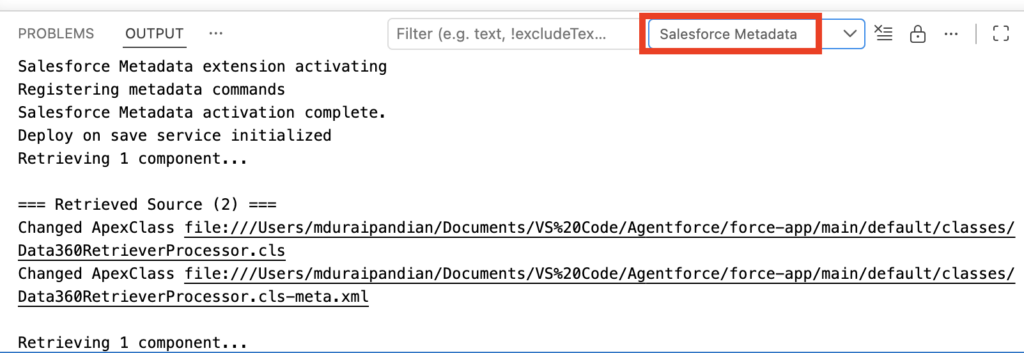
- In the “OUTPUT”, make sure “Salesforce Meatadata” is selected.
Step-by-Step Breakdown
1. Verify Your SFDX Extension
The Salesforce Extension Pack receives frequent updates to maintain compatibility with the latest Salesforce releases and CLI changes. Check your extensions tab (Ctrl+Shift+X or Cmd+Shift+X) to ensure there are no pending updates. If it updated in the background, a quick restart of the extension host is required.
2. Hard Restart Your IDE
Sometimes, background processes attached to the Salesforce CLI hang up. Quitting the application entirely (not just closing the window, but fully exiting VS Code or Cursor) kills these stalled processes. When you re-open the IDE, the extensions will re-initialize fresh.
3. Check the Output Channel Dropdown
This is the most common culprit. The VS Code Output panel has multiple channels (e.g., Git, Tasks, Extension Host). When you run a retrieve or deploy command, the logs do not go to a generic channel; they go specifically to the Salesforce metadata channel. Look at the top right of your terminal/output window and ensure the dropdown is actively set to Salesforce Metadata (as shown in your reference image).
Recommendations & Best Practices
To prevent this and similar CLI/IDE issues from slowing down your development workflow in the future, consider the following best practices:
- Keep the Salesforce CLI (sf) Updated: The VS Code extensions rely heavily on the underlying Salesforce CLI. Run
sf updatein your terminal regularly to ensure you are on the latest stable version. - Monitor the Developer Tools Console: If an extension fails silently and doesn’t print to the Output panel, you can often find the root error in VS Code’s internal developer console. Go to Help > Toggle Developer Tools and check the Console tab for red error logs.
- Use the
sfCommand Line Equivalents: If the UI buttons or command palette options are failing, try running the command directly in the integrated terminal (e.g.,sf project deploy start). If it works in the terminal but not via the UI extension, you know the issue is isolated to the VS Code Extension Pack, not your Salesforce authorization or code. - Authorize Your Org Successfully: Ensure your default org is properly authorized. Sometimes the deploy/retrieve output silently fails to generate if the session token has expired. Run
sf org listto verify your connection status.