Issue:
Salesforce Not sent Error Message or Messaging for Web Chat Widget keeps loading issue
Are your customers complaining that your Salesforce Messaging for Web chat widget is stuck on a loading screen or showing a “Not sent” error message? 😵💫 This frustrating issue usually points to one root cause: Salesforce is failing to create the MessagingSession record when a customer initiates a chat.
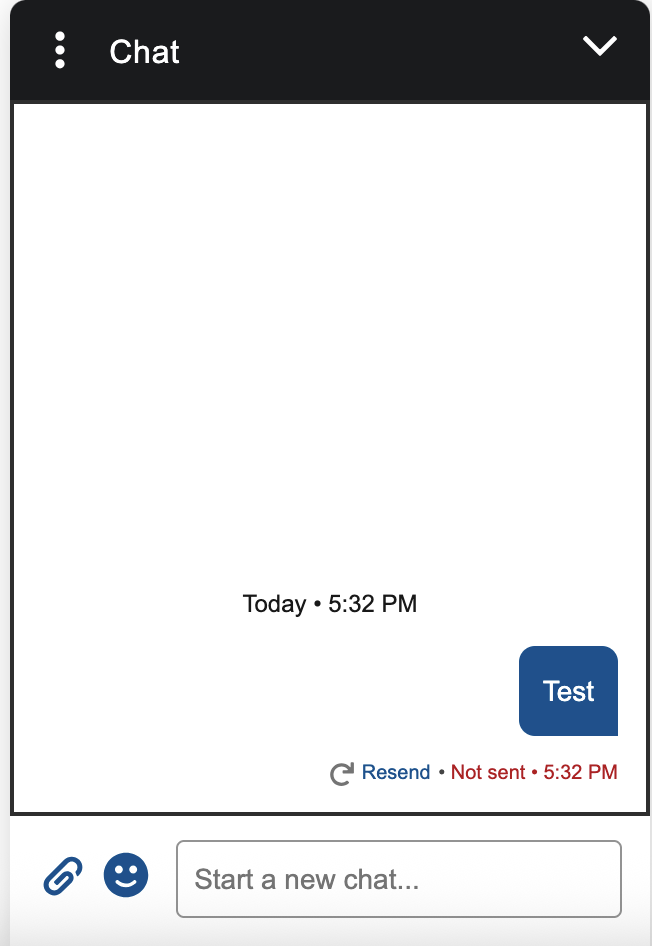

This failure is almost always caused by a recent customization on the $MessagingSession object. Let’s break down the common culprits and how to fix them.
The Core Problem: MessagingSession Record Creation Failure
Whenever a customer starts a new conversation through the Messaging for Web widget, Salesforce attempts to create a new $MessagingSession record in the background. If this record creation fails for any reason, the chat widget on the user’s end gets stuck, as it never receives the confirmation it needs to proceed. The most common reasons for this failure are custom required fields, validation rules, flows, or Apex triggers.
Here’s how to troubleshoot and resolve each of these potential issues.
Cause 1: A Required Field Isn’t Populated
You or another administrator may have recently made a field on the $MessagingSession object required. However, the automated process that creates the session record doesn’t have a value for this new custom field, causing the save operation to fail.
How to Fix It:
- Identify the Required Field: Navigate to Setup > Object Manager > Messaging Session. Go to Fields & Relationships. Look for any custom fields that have been recently marked as “Always Required”.
- Make it Optional: Edit the field and uncheck the Required checkbox.
- Provide a Default Value (Alternative): If the field must remain required, provide a Default Value for it. This ensures the field is populated automatically when the record is created by the system, allowing the save to succeed.
Cause 2: A Validation Rule Is Blocking Creation
A newly implemented validation rule on the $MessagingSession object is another common cause. If the rule’s criteria are met during the automated creation process, the record fails to save, and the chat widget hangs.
How to Fix It:
- Review Validation Rules: Go to Setup > Object Manager > Messaging Session > Validation Rules.
- Check Rule Logic: Examine any recently created or activated rules. The rule’s logic is likely preventing the record from being created because the system-provided values don’t meet your criteria.
- Refine the Rule: Adjust the formula to allow the initial creation of the session record. You might add a condition to bypass the rule for records being created by the automated user. A good approach is to add a condition like
$User.Username != 'automated_process_username@example.com', where you would use the actual username of the automated process user. - Deactivate the Rule: If the rule isn’t critical, simply deactivate it to immediately resolve the issue.
Cause 3: A Before-Save Record-Triggered Flow Fails
A record-triggered flow set to run before the record is saved on the $MessagingSession object can also cause this problem. If the flow encounters an error or has logic that intentionally stops the transaction (e.g., a decision element that doesn’t lead to a valid outcome), the record creation will fail.
How to Fix It:
- Examine Flows: Go to Setup > Flows. Look for any recently created record-triggered flows that operate on the
$MessagingSessionobject. - Debug the Flow: Use the Debug tool in the Flow Builder to run a test scenario. See if the flow is failing at a specific element. Check the debug logs for detailed error messages.
- Add Fault Paths: Ensure your flow has Fault Paths for all elements that could potentially fail (like data actions or record updates). This allows the flow to handle errors gracefully instead of halting the entire transaction.
- Review Flow Logic: Make sure all decision elements and logic paths account for the automated creation scenario and don’t lead to a dead end.
Cause 4: An Apex Trigger Fails
A custom Apex trigger on the $MessagingSession object, especially a before insert trigger, can be the culprit. An unhandled exception or a deliberate addError() call within the trigger will prevent the record from being saved.
Cause 5: Storage limit Exceeded
Check whether the Storage in your Salesforce org is not exceeded. Go to Storage Usage in Salesforce Setup to check whether Storage limit is under control or exceeded.
Cause 6: Multiple Embedded Service Deployment Code
Check whether you have added multiple Embedded Service Deployment Code Snippet on your web page or experience cloud page. Adding multiple Embedded Service Deployment Code Snippets cause JavaScript conflicts and stop loading the Messaging for Web Chat Widget.
How to Fix It:
- Check Apex Triggers: Navigate to Setup > Object Manager > Messaging Session > Triggers. Identify any active
before inserttriggers. - Review Debug Logs: The best way to diagnose this is to open the Developer Console, start capturing logs, and then try to initiate a chat. The debug log will show you the exact line of code in the trigger that is causing the failure.
- Refine Trigger Logic: Add
try-catchblocks to your Apex code to handle potential exceptions gracefully. Ensure any logic usingaddError()includes conditions to bypass the automated creation process if necessary. - Deactivate the Trigger: As a last resort, deactivate the trigger to confirm it’s the source of the problem and then work on a permanent code fix.
- Increase the Storage limit: Reach out to your Salesforce Account Executive to increase the Salesforce Storage Limit.
- Avoid multiple Embedded Service Deployment: Make sure only one Embedded Service Deployment Code Snippet is added to your Web Page. If you’re using Experience Cloud Site, add only one Embedded Messaging component on the page.
By systematically checking these four areas, you can quickly identify and fix the customization that is preventing $MessagingSession records from being created, getting your chat widget back online for your customers. 👍