Supercharge Einstein: How to Pass a List of Records from Salesforce Flow to a Prompt Template
Generative AI in Salesforce, powered by Einstein, is revolutionizing how we automate tasks and generate content. Prompt Templates in Flow Builder are at the heart of this, allowing you to create dynamic, context-aware prompts. But what happens when you need to provide more than just a single record as context? How do you pass an entire list of records—like similar cases, related opportunities, or product histories—to your prompt?
By default, you can’t directly merge a collection of SObject records into a prompt’s text field. But don’t worry, there’s a powerful and surprisingly simple solution.
In this guide, we’ll walk you through a three-step process using a simple Apex class and the “Transform” Flow element to pass a full list of records to a Prompt Template, unlocking a new level of context for your AI-powered automations.
The Challenge: Providing Rich Context
Imagine you want to generate a summary of similar cases for a service agent. You can easily find these cases using a “Get Records” element in your Flow. However, the “Add Prompt Instructions” element won’t let you just drop that record collection in and have it magically format into a neat list. To solve this, we need to convert our list of records into a format the prompt can understand, and that’s where Apex and the Transform element come in.
The Solution: Apex Class + Transform Element
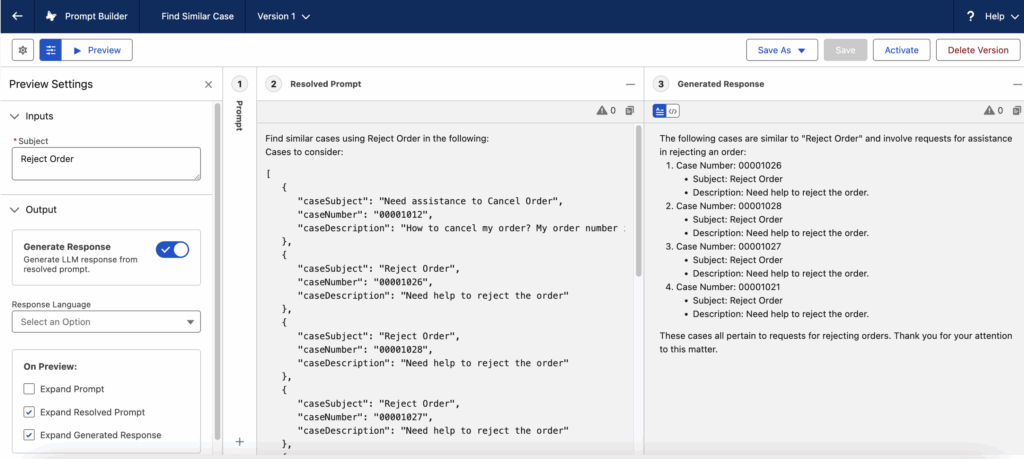
We’ll use a lightweight Apex “wrapper” class to define the structure of our data, and then use the Transform element in Flow to map our records into a list of this Apex-defined type. This process effectively serializes the data into a clean, LLM-friendly format like JSON.
Let’s get started!
Step 1: Create Your Apex Wrapper Class
First, we need to define a simple container for the data fields we want to pass to the prompt. This Apex class doesn’t contain any complex logic; it just defines a few variables. The key is the @AuraEnabled annotation, which makes these variables visible and accessible to Flow Builder.
For our example, we’ll create a class to hold key details about similar Cases.
- Navigate to Setup > Developer Console.
- Click File > New > Apex Class.
- Name the class
SimilarCasesand paste the following code:
public class SimilarCases {
    @AuraEnabled
    public String caseNumber;

    @AuraEnabled
    public String caseSubject;

    @AuraEnabled
    public String caseDescription;
}
This class defines a structure with three string variables: caseNumber, caseSubject, and caseDescription. When our Flow creates a list of these SimilarCases objects, it will be in a format the prompt template can easily digest.
Step 2: Use the “Transform” Element in Your Flow
Now, let’s head to Flow Builder. Assume you already have a “Get Records” element that fetches a list of relevant Case records. The next step is to transform this record collection into our new Apex-defined format.
- In your Flow, add a new Transform element after your “Get Records” element.
- For the Source Data, select your record collection variable from the “Get Records” element (e.g.,
{!Get_Similar_Cases}). - For the Target Data, click the lookup, select Apex-Defined, and find your
SimilarCasesclass. Make sure you check the Allow multiple values (collection) box. - Give the output variable a clear name, like
SimilarCases_ApexDefined. - Now, map the fields. For each field in your source Case record, map it to the corresponding variable in your target
SimilarCasesApex class.{!Get_Similar_Cases.CaseNumber}->caseNumber{!Get_Similar_Cases.Subject}->caseSubject{!Get_Similar_Cases.Description}->caseDescription

The output of this element, {!SimilarCases_ApexDefined}, is now a collection variable of the SimilarCases Apex type, perfectly formatted for our next step.
Step 3: Add the Collection to Your Prompt Template
You’re at the final step! Now you can reference your newly transformed collection directly in an “Add Prompt Instructions” or any other prompt-aware Flow element.
- Add the Add Prompt Instructions element to your Flow canvas.
- Select your desired Prompt Template Resource.
- In the “Instructions” section, you can provide context for the AI. To merge your list, simply reference the output variable from your Transform element.
Example Prompt Text:
You are a helpful service agent assistant. Please summarize the following list of similar open cases to identify common themes or recurring issues.
Here is the list of related cases:
{!SimilarCases_ApexDefined}
That’s it! When the Flow runs, Salesforce will automatically convert the {!SimilarCases_ApexDefined} collection into a structured JSON string within the prompt. The LLM will receive this clean data and be able to parse it as a list of distinct records, allowing it to perform the requested task, like summarizing the cases.

Why This Works: Unlocking Structured Data for AI
The magic behind this method is serialization. Salesforce Flow can’t just “write out” the contents of an SObject collection into a text block. However, when you use the Transform element to map your records to an Apex-Defined data type, you are creating a serializable list. This list can then be neatly converted into a universally understood format (JSON), which is perfect for providing structured data to a Large Language Model (LLM).
By using this technique, you can dramatically enhance the context you provide to Einstein, leading to more accurate, relevant, and powerful generative AI outcomes in your automations.
Go ahead and give it a try! You can adapt this method for any object and any scenario where you need to pass a list of records—opportunities, contacts, custom objects, and more—to supercharge your Salesforce AI capabilities.