Here is a draft for your blog post, fully optimized for SEO and tailored to your highly technical audience.
SEO Title: How to Push Code from VS Code to GitHub Using Git Commands (Complete Guide)
Meta Description: Learn the essential Git commands to seamlessly move your component changes from Visual Studio Code (VS Code) to a GitHub repository. A quick-reference guide for developers, architects, and admins.
Introduction
For software engineers, developers, and architects, Visual Studio Code (VS Code) is the undisputed champion of lightweight code editors. While VS Code offers a fantastic built-in Source Control GUI, mastering the Command Line Interface (CLI) Git commands is essential. Knowing the CLI provides deeper control over your version history, enables automation for DevOps admins, and is a universal skill regardless of the IDE you use.
If you have just updated your components in VS Code and need to sync them to your remote GitHub repository, this guide provides the exact command sequence you need to stage, commit, and push your code.
Step-by-Step: Moving Changes from VS Code to GitHub
Open your integrated terminal in VS Code (Ctrl + \`` or Cmd + “) and ensure you are in the root directory of your project. Follow these four steps to move your code to the remote repository.
Step 1: Stage Your Untracked and Changed Files
Before you can commit your code, you need to move your modified components into the Git staging area.
- Use the following command to include all untracked and changed files.
git add *
Step 2: Commit Your Changes to the Local Repository
Once your files are staged, you must package them into a commit. This acts as a snapshot of your project at this specific point in time.
- Use the following command to Commit the changes.
git commit -m "commit comment"
Step 3: Map Your Local Branch to the Main Branch
Modern Git repositories use main as the default branch nomenclature. This step ensures your local branch is properly named and mapped before pushing.
- Use the following command to map it to the Branch.
git branch -M main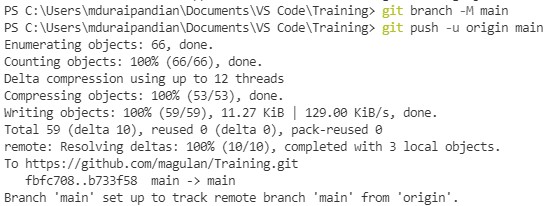
Step 4: Push the Changes to the Remote GitHub Repository
Finally, you need to upload your local repository content to your remote GitHub repository.
- Use the following command to push the changes to the Branch.
git push -u origin mainExpert Recommendations & Best Practices
While the commands above will successfully move your code from VS Code to GitHub, technical professionals should keep the following best practices in mind when utilizing these specific snippets:
- Refining
git add *: Using the asterisk (*) relies on shell expansion. It will add all files in the current directory, but it might skip hidden files (files starting with a dot, like.envor.gitignoredepending on your shell environment) and can sometimes bypass your.gitignorerules.- Best Practice: Use
git add .orgit add -Ato reliably stage all changes in the directory, respecting your.gitignore. Even better, explicitly stage files usinggit add <filename>to ensure you are only committing what you intend to.
- Best Practice: Use
- Enhancing
git commit -m "commit comment": A vague comment makes it incredibly difficult for other engineers, analysts, or architects to track the project’s history or rollback changes safely.- Best Practice: Adopt a standardized commit message format, such as Conventional Commits (e.g.,
feat: update navigation component,fix: resolve memory leak in API call).
- Best Practice: Adopt a standardized commit message format, such as Conventional Commits (e.g.,
- Context for
git branch -M main: The-Mflag forces the renaming of the current local branch tomain.- Best Practice: You typically only need to run this command once when initializing a new repository. For day-to-day component updates on an existing repository, you can skip this step.
- Context for
git push -u origin main: The-u(or--set-upstream) flag links your localmainbranch to the remotemainbranch on GitHub.- Best Practice: Like the branching command, you only need the
-uflag the first time you push a branch. For subsequent updates to the same branch, a simplegit pushis sufficient.
- Best Practice: Like the branching command, you only need the