Salesforce Metadata API: How to Retrieve Deployed Components Using a Deployment ID?
Have you ever triggered a deployment in Salesforce and needed to audit exactly what components were moved after the fact? Whether you are debugging a failed pipeline or simply auditing a release, having the Deployment ID is often the key to unlocking that information.
While the Salesforce setup UI provides a deployment status page, sometimes developers need a programmatic way to fetch these details or need to inspect the raw metadata response.
In this guide, we will walk you through how to use the REST Explorer (commonly found in Workbench) to retrieve a list of deployed components using a specific Deployment ID.
Why use the REST Explorer for Deployments?
Using the Salesforce Metadata API via REST Explorer allows you to:
- Verify content: Confirm exactly which metadata files (Apex classes, Custom Objects, etc.) were part of a specific transaction.
- Debug errors: View granular error messages associated with specific component failures.
- Audit history: Retrieve details for deployments that may no longer be visible on the “Deployment Status” page in Setup.
Step-by-Step Guide
Follow these steps to fetch your deployment details.
1. Locate your Deployment ID
First, ensure you have the Deployment ID. This ID usually starts with the prefix 0Af. You can find this in your CI/CD tool logs, the URL of the Deployment Status page in Salesforce, or via a query to the DeployRequest object.
2. Launch REST Explorer
Log in to Workbench (or your preferred API testing tool like Postman) using your Salesforce credentials. Navigate to the Utilities menu and select REST Explorer.
3. Configure the HTTP Request
To get the specific details of what was deployed, we will query the deployRequest resource.
HTTP Method: GET
HTTP Request URL: /services/data/v49.0/metadata/deployRequest/<deploymentId>?includeDetails=true
4. Execute and Analyze
Click Execute.
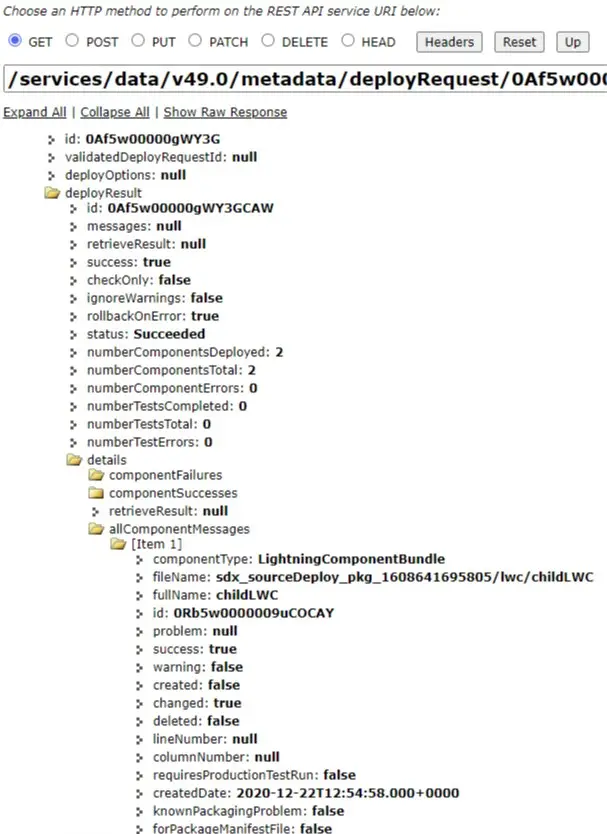
The system will return a JSON response. Because we used the parameter includeDetails=true, the response will be comprehensive. Look for the componentSuccesses or componentFailures arrays in the JSON body. These sections list the specific metadata file names, types, and their status.
Understanding the Output
When the request is successful, you will receive a payload that looks similar to this structure:
id: The Deployment ID you queried.status: The overall state (e.g., Succeeded, Failed).details: This object contains the granular data you are looking for.componentSuccesses: A list of components that deployed correctly.componentFailures: A list of components that failed, including the error message and line number.