
You’re deep into configuring a new Omni-Channel Flow—the final, powerful piece of your automated service process. You reach the crucial Route Work action, click the Queue lookup, and… nothing. The queue you know exists, the one you just created, is simply not selectable.
This is a common, yet frustrating, roadblock for Salesforce administrators and developers. The issue almost always comes down to a small, but critical, misconfiguration between your Queue and its associated Routing Configuration.
The problem is specifically related to how Omni-Channel Flow interacts with the two primary routing methods: Queue-Based and Skills-Based Routing.
The Two Reasons Your Queue is Invisible in Omni-Channel Flow
When you’re configuring the Route Work action in an Omni-Channel Flow, the system filters the available Queues based on specific criteria from their linked Routing Configuration. If a Queue does not meet one of two key requirements, it will be excluded from the lookup selection.
Here are the possible situations or scenarios if you are unable to select the Queue from the Lookup in the Omni-Channel Flow:
We won't be able to choose or select Queues in the Salesforce Omni-Channel Flow

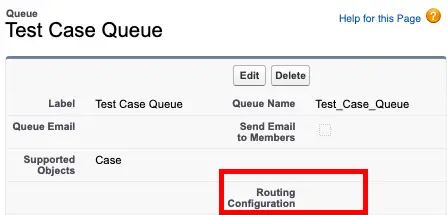
1. If the Queue is not configured to a Routing Configuration.

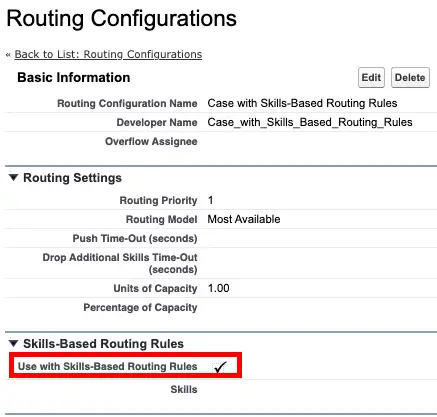
2. If the Queue's Routing Configuration uses "Use with Skills-Based Routing Rules".
Let’s break down exactly why these two scenarios cause the Queue to disappear and, more importantly, how to resolve them.
Cause 1: Queue is Not Configured to a Routing Configuration
The Omni-Channel Flow’s Route Work action requires specific routing logic to be defined before it can successfully send a work item (like a Case or Chat) to a Queue. This logic is contained within the Routing Configuration.
The Fix:
- Navigate to Setup and search for Queues.
- Select the Queue you are trying to route to.
- Scroll down to the Queue Members section.
- Ensure a Routing Configuration is assigned to the Queue. If it is blank, you must create or select an existing Routing Configuration and assign it here.
Cause 2: The Routing Configuration is Enabled for Skills-Based Routing
This is the most common and often confusing reason. The Omni-Channel Flow itself is the primary tool for executing sophisticated, dynamic routing—including Skills-Based Routing (SBR).
If you are trying to route to a Queue directly, the Routing Configuration must not be set up to use SBR rules. Why? Because the flow assumes if you are using the Queue action, you want simple, non-SBR-enabled routing.
If the Routing Configuration is configured to use SBR, the system expects you to use the dedicated Route Work to Skills action instead of the Queue lookup.
The Fix:
- Navigate to Setup and search for Routing Configurations.
- Open the Routing Configuration linked to your Queue.
- Crucially, verify that the checkbox for “Use with Skills-Based Routing Rules” is DISABLED (unchecked).
- If you want to use simple Queue-Based Routing (Recommended for the Queue Lookup): Ensure this box is UNCHECKED. Once saved, your Queue should immediately appear in the Flow Lookup.
- If you MUST use Skills-Based Routing: Do not use the Queue Lookup. Instead, you must use the Route Work to Skills action in your Omni-Channel Flow. Your flow logic will determine the required skills, and the system will then match the work to the appropriate agent (not the Queue).
Summary Table for Quick Troubleshooting
| If the Problem Is… | The Setting You MUST Check Is… | How to Resolve |
| Queue is missing entirely. | Queue –> Routing Configuration Assignment | Edit the Queue and assign a valid Routing Configuration. |
| Queue is missing, but has a config. | Routing Configuration $–> “Use with Skills-Based Routing Rules” | Edit the Routing Configuration and UNCHECK the “Use with Skills-Based Routing Rules” checkbox. |
| You need to use Skills-Based Routing. | The Flow Action Itself | Do NOT use the Queue Lookup. Instead, use the Route Work to Skills flow action. |
By checking these two simple, yet powerful, configuration points, you can quickly move past the ‘disappearing queue’ problem and complete your advanced Omni-Channel Flow routing logic.
Best Practice Recommendation from the Content
The content highlights an important architectural decision in Salesforce Service Cloud:
Best Practice Recommendation:
The core recommendation embedded in the issue is to ensure a clean separation of concerns between Queue-Based Routing and Skills-Based Routing when using Omni-Channel Flow.
- If you are using the Queue Lookup: Use a dedicated Routing Configuration where “Use with Skills-Based Routing Rules” is disabled. This keeps your routing simple and explicit.
- If you need Skills-Based Routing: Use the Route Work to Skills flow element. Avoid trying to force a Queue to appear with SBR rules enabled, as this is against the intended design of the Omni-Channel Flow. The flow is designed to be the sophisticated SBR manager, bypassing the need for a simple queue routing setup in that scenario.
Above are the possible situations or scenarios if you unable to select the Queue from the Lookup in the Omni-Channel Flow.